How to Enable BitLocker Using Group Policy
In today’s digital world, data security is crucial for everyone, whether you’re an individual or part of an organization. With more cyber threats and the risk of data leaks, protecting important information is a must. Encryption is one of the best ways to secure data on Windows systems, and BitLocker is a great option. It’s a strong encryption tool made by Microsoft. When you want to manage BitLocker across many devices in an organization, Group Policy (GPO) is a very useful tool. This article will show you how to enable BitLocker using GPO, from the basics to the step – by – step process.
What is BitLocker?
BitLocker is a powerful encryption tool developed by Microsoft for Windows systems. It encrypts entire drives, so even if someone steals your storage device or tries to access it without permission, they can’t see your sensitive data. BitLocker uses advanced encryption methods like the AES algorithm to keep your data safe. It’s built into Windows operating systems starting from Windows Vista, so it’s widely used at home and in the workplace.
What is Group Policy in an Organization?
Group Policy (GPO) is a central management system in Windows environments. It lets administrators set and enforce security rules and configurations for all devices in a network. With GPO, IT teams can apply the same security measures, install software, and manage user permissions without having to set up each device separately. This helps keep an organization’s security consistent and reduces mistakes that could lead to security problems.
The Power of BitLocker GPO Integration
When you combine BitLocker with GPO, it becomes an essential tool for managing encryption settings across an organization’s devices. Administrators can use BitLocker GPO to enforce policies such as enabling BitLocker on all endpoints, choosing how to store recovery keys, and setting startup options. For example, they can configure BitLocker GPO Active Directory settings to store recovery keys in Active Directory. This makes sure the keys are managed centrally and can be retrieved in case of emergencies. It reduces the risk of losing or forgetting recovery keys and helps organizations follow their security rules.
Moreover, GPO makes it easier to deploy BitLocker settings across multiple devices, which is great for scalability. IT teams can create templates to automate configurations like setting encryption methods, requiring PINs, or using multi – factor authentication. This integration streamlines security processes and ensures all devices meet the same high – level encryption standards, making it a key part of enterprise security strategies.
How to Enable BitLocker Using Group Policy
One of the best things about using BitLocker GPO is the ability to automatically deploy BitLocker encryption and securely store recovery keys in Active Directory. Here’s how to set it up:
Prepare the Active Directory Environment
Make sure your Active Directory (AD) is set up to support BitLocker key storage. You can use the BitLocker Active Directory Recovery Password Viewer tool to view and manage the stored keys. This step is crucial for a smooth BitLocker GPO Active Directory integration.
Access the Group Policy Management Console
Open the Group Policy Management Console (GPMC) and create or edit a Group Policy Object (GPO). This is where you’ll start making the settings for BitLocker GPO.
Configure BitLocker Settings
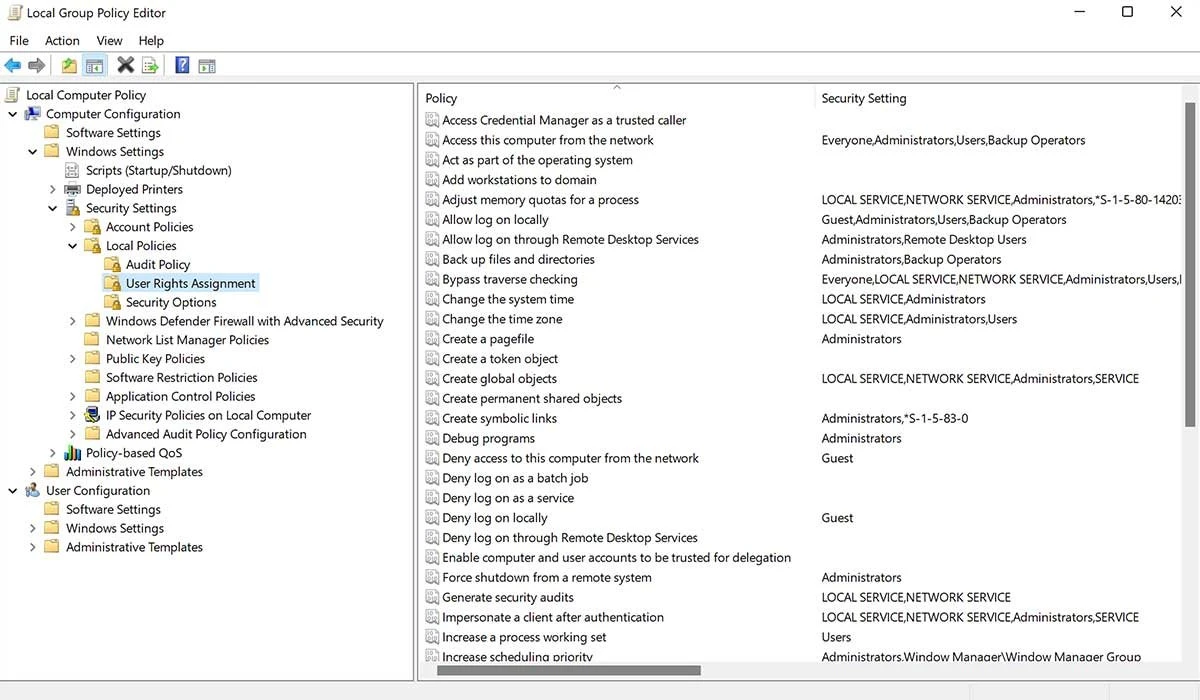
Navigate to Computer Configuration > Policies > Administrative Templates > Windows Components > BitLocker Drive Encryption. Here, you can configure encryption for different types of drives: operating system drives, fixed data drives, and removable data drives. You can also set up BitLocker GPO auto encrypt features to protect data automatically.
How to Store Keys in Active Directory
Storage Recovery Key in Active Directory
Under each drive encryption setting, enable the policy to store recovery keys in AD. This ensures that administrators can easily recover encrypted drives when needed, which is an important part of BitLocker GPO Active Directory management.
Deploy the Policy
Link the GPO to the appropriate Organizational Unit (OU) and update the group policy on target devices using the gpupdate /force command. This will put your new BitLocker GPO settings into effect.
By following these steps, you can effectively use BitLocker GPO to enhance the security of your organization’s data. Whether it’s protecting against data theft or meeting security compliance requirements, BitLocker and GPO together offer a powerful solution.
Find the Bitlocker Key using Magic Recovery Key
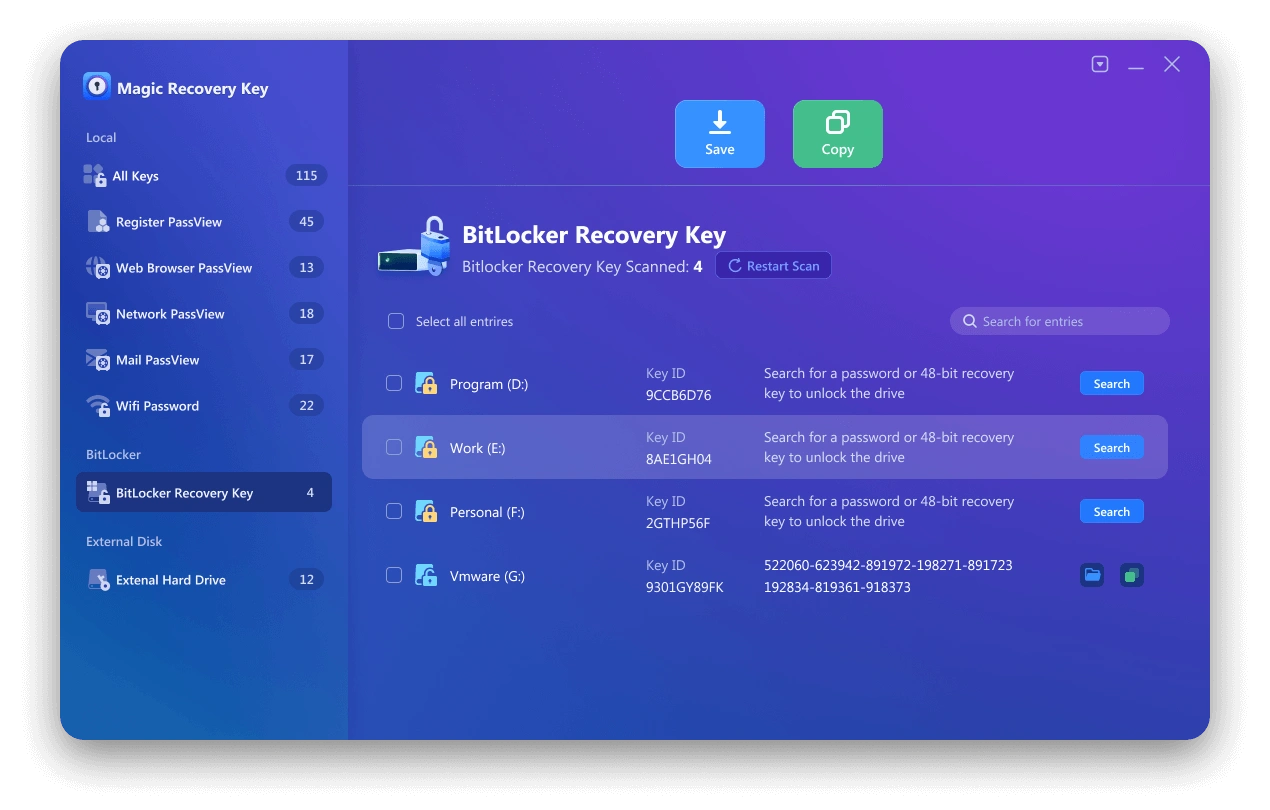
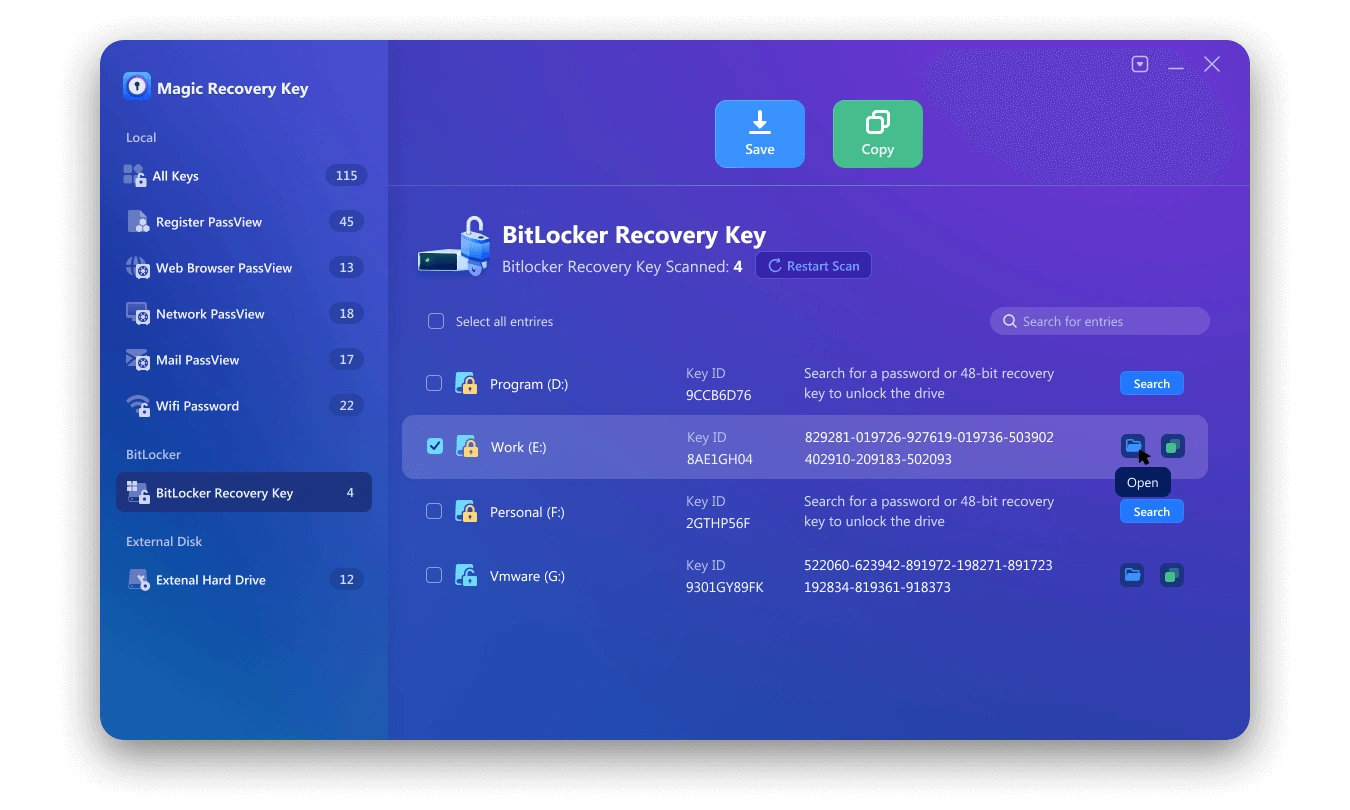
Magic Recovery Key is a powerful tool designed to locate your BitLocker recovery key, enabling you to unlock your device using this key. Download and install Magic Recovery Key from a reputable source to proceed.

Support Windows 7/8/10/11 and Windows Server
Then open the software and select BitLocker Recovery Key in the left menu.