
How to Find Bitlocker Recovery Key with Recovery Key ID
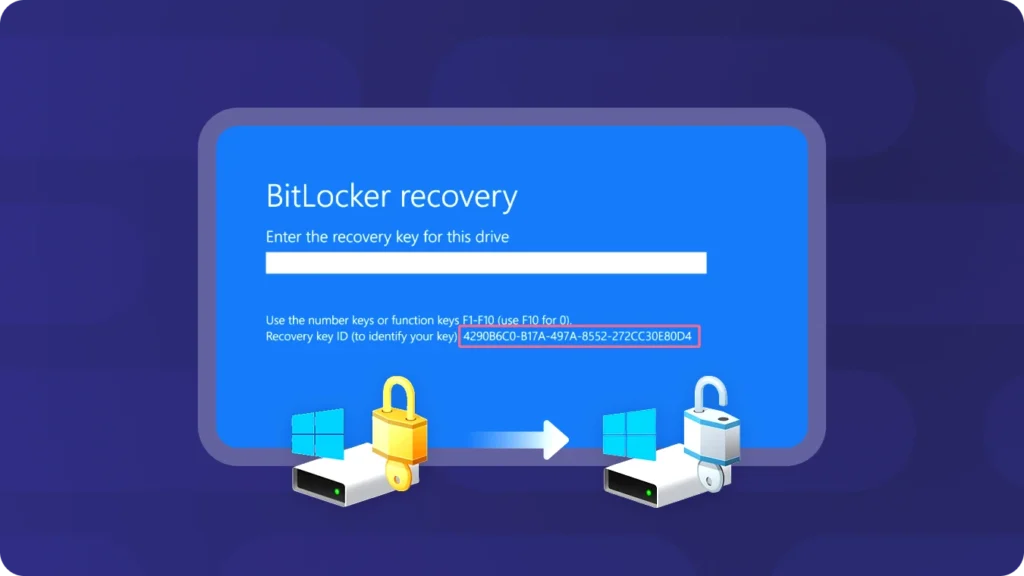
Users may encounter BitLocker issues and pose questions on the Microsoft Community. For example:
“My Dell Inspiron laptop suddenly crashed. After restarting it, it indicates that the hard drive is not installed. It prompts me to enter the BitLocker Recovery key and shows an 8-digit Key ID below it. I’ve never heard of BitLocker before. I attempted to retrieve the key through my Microsoft account, but it says the key isn’t associated with it. Is there any way I can recover the BitLocker Recovery key using this 8-digit Key ID? Please assist!”
To locate your BitLocker recovery key, you first need to have a good understanding of BitLocker and the BitLocker recovery key ID. Magic Recovery Key makes it easy to find your BitLocker recovery key quickly and efficiently. You can download it using the button below.
Supports Windows 7/8/10/11 and Windows Server
Table of Contents
What is the Bitlocker?
BitLocker is a Windows security feature that protects your data by encrypting your drives. This encryption ensures that if someone tries to access a disk offline, they won’t be able to read any of its content.
BitLocker is particularly valuable if your device is lost or stolen, as it keeps your sensitive information secure. It’s designed to be user-friendly and integrates seamlessly with the Windows operating system, making it easy to set up and manage.
How to Find the Bitlocker Recovery Key ID
Finding the BitLocker recovery key ID is an important step in further locating your BitLocker recovery key, because the BitLocker ID corresponds to the recovery key. Here are two methods for obtaining your BitLocker recovery ID.
From within Windows
To locate the key identifier for a drive, partition, or removable drive follow the steps below.
1. From the start menu, search for CMD then right-click Command Prompt and click run as administrator.

manage-bde -protectors -get <drive letter>: where <drive letter> is the drive letter for the BitLocker protected drive that you want to recover.

From the BitLocker recovery screen
If your computer is booting to the BitLocker recovery screen, the key identifier is in the highlighted area of the following image.

How to Do Bitlocker Recovery with Key ID
Once you have the Key ID, you can then attempt to find the BitLocker recovery key for that drive. Magic Recovery Key is a recommended tool as it can list both your BitLocker recovery key and the corresponding key ID. After that, you can use the BitLocker recovery key to unlock your BitLocker – encrypted drive.
Please download and install Magic Recovery Key from a reputable source to proceed.
Supports Windows 7/8/10/11 and Windows Server


Other Methods for Getting Bitlocker Recovery Key With ID
- Check Microsoft Account: If your device is connected to a Microsoft account and BitLocker recovery keys were automatically backed up, you can log in to your Microsoft account and check if the recovery key is available there. This is often the easiest way and doesn’t require the Key ID.
- Check Active Directory: In an enterprise environment where BitLocker recovery keys are stored in Active Directory, an administrator can search for and retrieve the recovery key for your device. This method is usually used in corporate or educational settings and doesn’t rely on the Key ID.
- Recovery Options in Windows: During the BitLocker recovery process, if you are prompted to enter the recovery key and don’t have the Key ID, there might be additional options like “I forgot my key” or “Try another way to recover”. These options may lead you through a series of steps to verify your identity and retrieve the recovery key.
Conclusion
When a BitLocker-protected drive is locked, Windows may display a Recovery Key ID instead of the actual recovery key. It is important to understand that the Recovery Key ID is not the key itself, but a reference used to help identify which 48-digit BitLocker recovery key is required.
By using the Recovery Key ID, you can match it with the correct recovery key stored in various locations, such as your Microsoft account, Active Directory / Azure AD (for work or school devices), USB drives, printed records, or backup files. In some cases, specialized recovery tools may also help locate previously saved keys on the system.
Knowing how to retrieve the Recovery Key ID and where to search for the corresponding recovery key can save significant time and prevent unnecessary data loss. To avoid future issues, it is always recommended to securely back up your BitLocker recovery key as soon as encryption is enabled.
You can download Magic Recovery Key using the button below if you need to find your bitlocker recovery key.
Supports Windows 7/8/10/11 and Windows Server
FAQs
What is a BitLocker Recovery Key ID?
Is the Recovery Key ID the same as the BitLocker recovery key?
How can I find my BitLocker recovery key using the Key ID?
Can I view the Recovery Key ID from Windows Command Prompt?
Where is the recovery key stored if my device is managed by an organization?
What if I never backed up my BitLocker recovery key?
Can third-party tools help find my BitLocker recovery key?
What happens if I cannot find the matching recovery key?

Erin Smith is recognized as one of the most professional writers at Amagicsoft. She has continually honed her writing skills over the past 10 years and helped millions of readers solve their tech problems.