Skip to content
amagicsoft logo icon
  • Home
  • Products
    • Magic Data Recovery
    • Magic Recovery Key
  • Store
  • Blog
  • More
    • About Amagicsoft
    • Contact US
    • Privacy Policy
    • Terms
    • License Agreement
    • Refund Policy
  • English
    • 日本語
    • 한국어
    • Deutsch
    • Français
    • Español
    • Italiano
    • Português
    • 繁體中文
Bitlocker Recovery

How to Encrypt/Decrypt BitLocker with Bitlock Command Line
30.04.2025 Smith, Erin Comments Off on How to Encrypt/Decrypt BitLocker with Bitlock Command Line

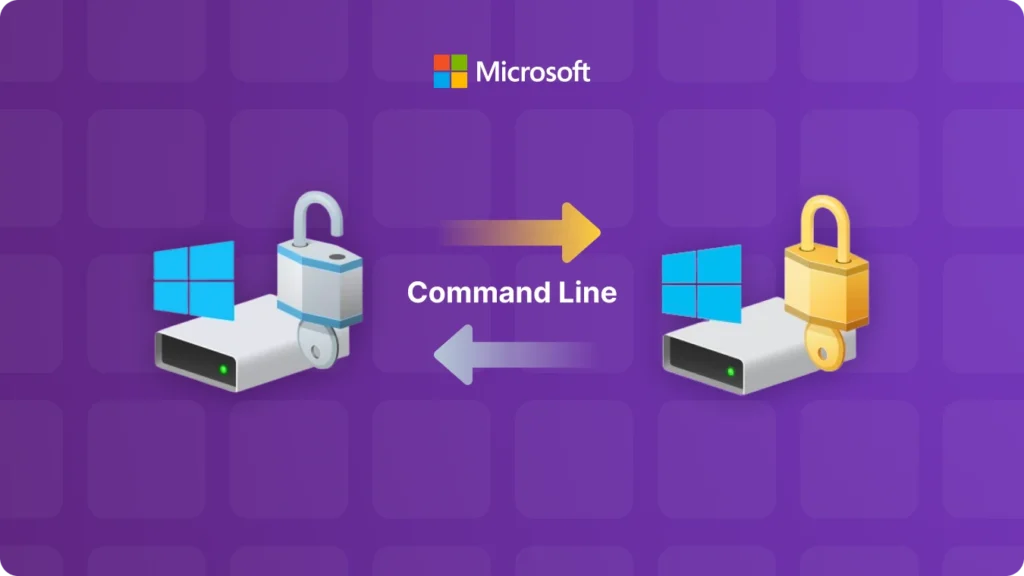
In the realm of data security, BitLocker is a powerful tool offered by Microsoft. It provides full – volume encryption for Windows operating systems, safeguarding your data from unauthorized access. While there are graphical user interfaces (GUIs) to manage BitLocker, using the BitLocker command line can offer more flexibility and efficiency, especially for system administrators or those who prefer the command – line approach.

Download Magic Recovery Key

Supports Windows 7/8/10/11 and Windows Server

Table of Contents

What is BitLocker Command Line?

The BitLocker command line, often referred to as the manage – bde commands, is a set of commands that allow users to interact with BitLocker encryption features directly from the Command Prompt or PowerShell. With these commands, you can perform a wide range of operations related to BitLocker, such as encrypting drives, decrypting drives, changing passwords, and managing recovery keys.

How to Encrypt with BitLocker Command Line

1. Open the Command Prompt as Administrator

To use the manage – bde commands effectively, you need administrative privileges. Right – click on the Command Prompt icon and select “Run as administrator.”

2. Select the Drive to Encrypt

Identify the drive letter you want to encrypt. For example, if you want to encrypt your D: drive, you can use the following command:

manage – bde – on D:

This command will start the encryption process on the specified drive. By default, BitLocker will use the standard encryption method. If you want to use a different encryption mode, you can add additional parameters. For instance, to use the XTS – AES 256 – bit encryption mode:

manage – bde – on D: – encryption XTS – AES256

You may also be prompted to set a password for the encrypted drive. This password will be required to access the drive in the future.

How to Decrypt with BitLocker Command Line

1. Open the Command Prompt as Administrator

Just like with encryption, you need administrative rights.

2. Decrypt the Drive

To decrypt a drive, say the D: drive, use the following command:

manage – bde – off D:

If you have set a password for the BitLocker – encrypted drive, you will be prompted to enter it. After entering the correct password, the decryption process will begin. The time it takes to decrypt the drive depends on the size of the drive and the amount of data stored on it.

manage – bde – on D: – encryption XTS – AES256

How to Decrypt with Magic Recovery Key

1. Download and install Magic Recovery Key from a trusted source.

Download Magic Recovery Key

Supports Windows 7/8/10/11 and Windows Server

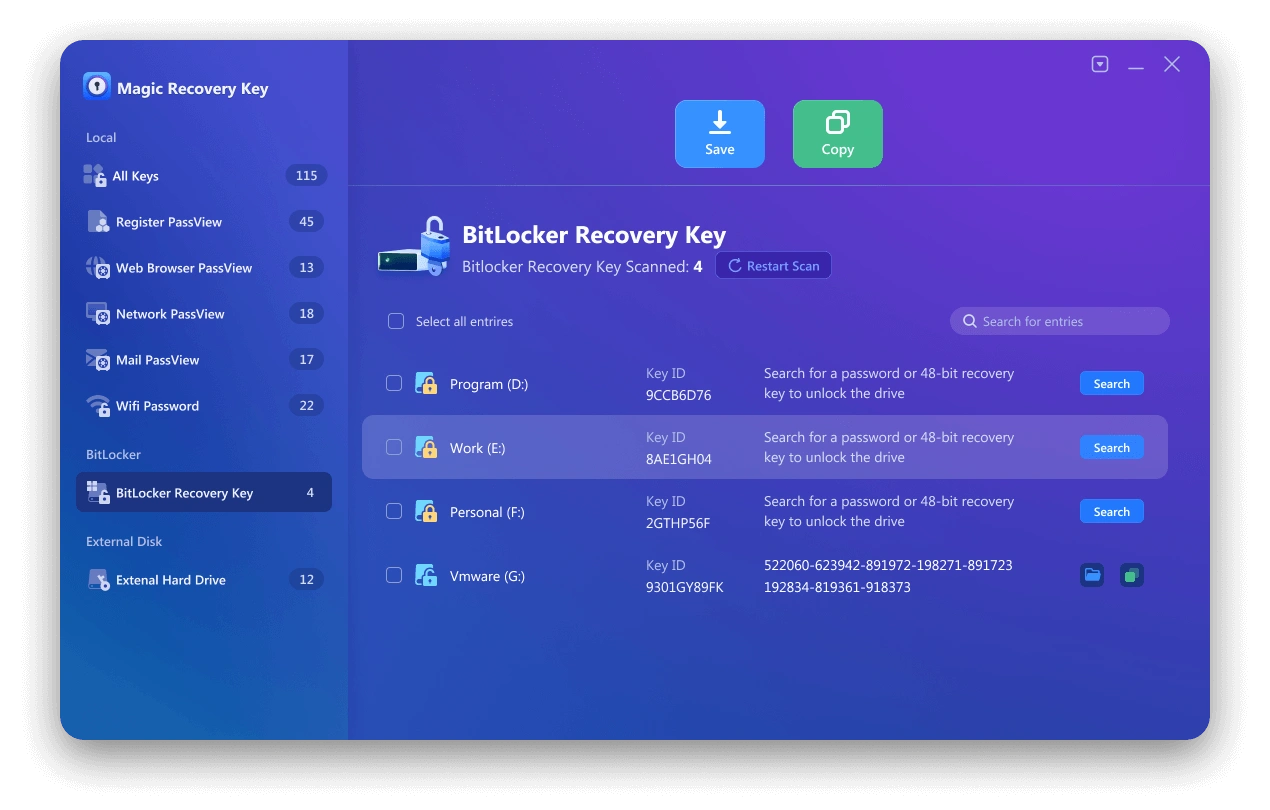
2. Open the software and select BitLocker Recovery Key in the left menu.
steps-to-use-magic-recovery-key

3. Click Search to let the software scan for the BitLocker key.

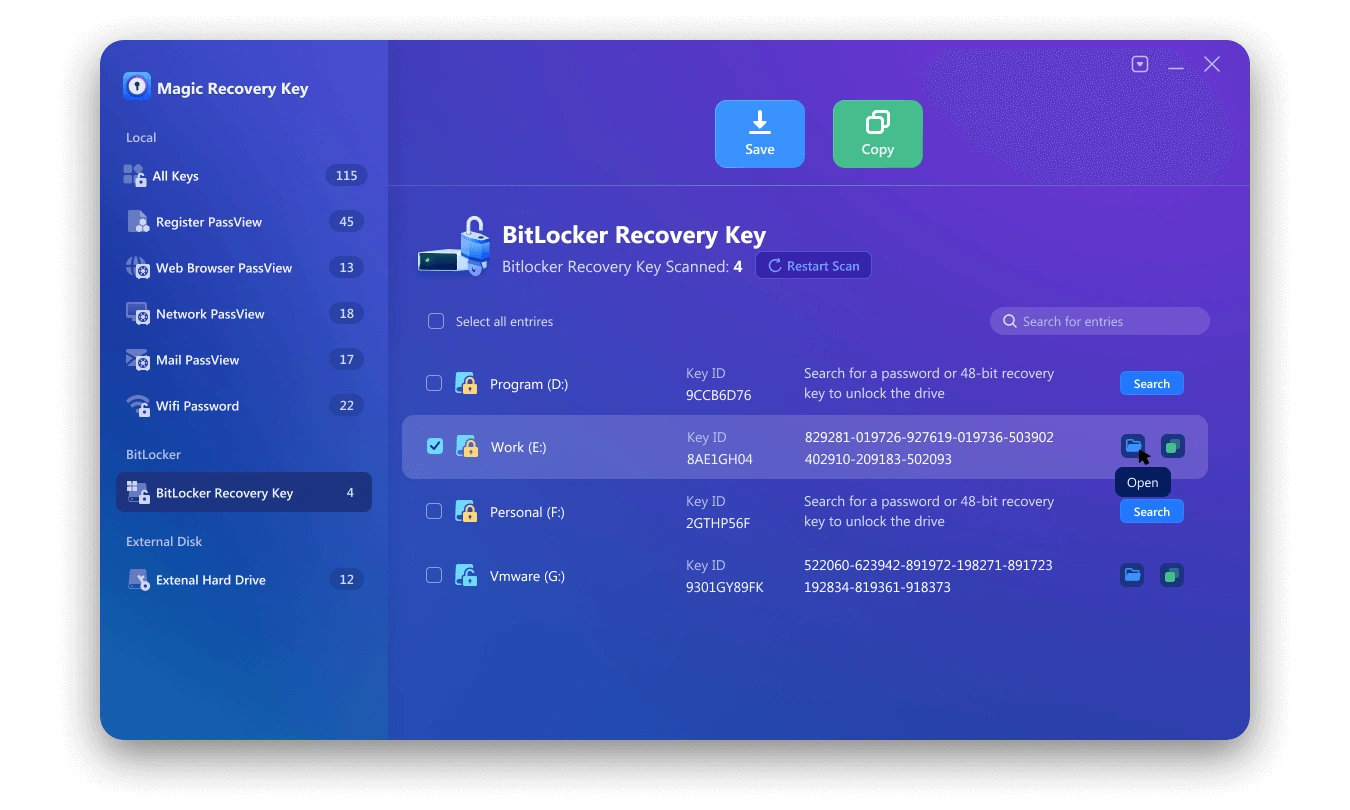
4. Once the key is found, copy it and use it to unlock your encrypted drive.
steps-to-use-magic-recovery-key

Conclusion

The BitLocker command line, with its manage – bde commands, offers a robust way to manage BitLocker encryption. Whether you are encrypting a drive to protect your data or decrypting it for easier access, these commands provide a straightforward and efficient solution. By understanding and using these commands, you can enhance the security of your Windows – based systems and have better control over your encrypted data. If you have trouble with command line, you can also directly use Magic Recovery Key to find bitlocker key to find the key and unlock it.

Download Magic Recovery Key

Supports Windows 7/8/10/11 and Windows Server

FAQ

How do I unlock BitLocker with the command line?

You can use the Windows built-in manage-bde command. For example, run manage-bde -unlock D: -RecoveryPassword in an elevated Command Prompt or PowerShell window. Replace D: with your drive letter and with the 48-digit BitLocker Recovery Key.

What can I do if I forgot my BitLocker password?

If you don’t remember your BitLocker password, you can still unlock the drive using the Recovery Key. If the Recovery Key is lost, professional tools like Magic Recovery Key by Amagicsoft can help you scan your system and recover the BitLocker Recovery Key.

Do I need administrator rights to use BitLocker command line tools?

Yes. The manage-bde command requires administrator privileges. Always back up your data before running encryption or decryption, and make sure the Recovery Key is stored safely to prevent permanent data loss.
  • How to
  • Magic Recovery Key
Smith, Erin

Erin Smith is recognized as one of the most professional writers at Amagicsoft. She has continually honed her writing skills over the past 10 years and helped millions of readers solve their tech problems.

文章导航

Previous
Next

Search

Categories

  • Bitlocker Recovery
  • Deleted File Recovery
  • Disk Issue Fix
  • Documents Recovery
  • Format File Recovery
  • Hard Drive Recovery
  • License Key Recovery
  • Lost File Recovery
  • Memory Card Recovery
  • News
  • Partition Recovery
  • Password Recovery
  • Photo Recovery
  • SSD Recovery
  • Uncategorized
  • USB Drive Recovery
  • User Guide
  • Video Recovery
  • Wiki
  • Windows Issue Fix

Recent posts

  • Can a Hard Drive with 100 Bad Sectors Be Repaired A Practical Guide
    Can a Hard Drive with 100 Bad Sectors Be Repaired? A Practical Guide
  • iBoysoft Data Recovery for Windows Review & Best Alternatives
    iBoysoft Data Recovery for Windows: Review & Best Alternatives
  • Ultimate Guide to Windows 7 Data Recovery How to Restore Lost Files
    Ultimate Guide to Windows 7 Data Recovery: How to Restore Lost Files

Tags

CHKDSK and Disk Tools Disk Repair Error Troubleshooting How to Magic Data Recovery Magic Recovery Key WiKi

Related posts

How to Check a Hard Drive for Bad Sectors
Disk Issue Fix

How to Check a Hard Drive for Bad Sectors (Step-by-Step Guide)

22.01.2026 Jason No comments yet

Many users overlook what to do after they check a hard drive for bad sectors, which often leads to avoidable data loss. In most cases, they show warning signs long before complete failure happens. Slow file access, system freezes, corrupted files, or unexpected crashes often indicate one hidden issue: bad sectors. If you ignore these […]

Finding reliable data recovery software for Windows XP
Lost File Recovery

Data Recovery Software for Windows XP: How to Recover Lost Files for Free

22.01.2026 Jason No comments yet

Finding reliable data recovery software for Windows XP can be difficult, especially as the operating system is no longer officially supported. Many users still rely on Windows XP for legacy computers, industrial systems, or archived data, and data loss can happen at any time due to accidental deletion, formatting, or file system errors. This guide […]

How to Fix SSD Bad Sectors A Comprehensive Guide
Disk Issue Fix

How to Fix SSD Bad Sector: A Comprehensive Guide

21.01.2026 Vasilii Comments Off on How to Fix SSD Bad Sector: A Comprehensive Guide

SSD bad sector can severely impact the performance and reliability of your storage device. Whether you’re experiencing system crashes, slow performance, or data corruption, bad sectors are often to blame. SSDs are known for their speed and reliability, but they are not immune to damage. Understanding what bad sectors on SSD are, how they occur, and […]

amagicsoft logo icon

Our vision is to become a globally renowned software brand and service provider, delivering top-tier products and services to our users.

Products
  • Magic Data Recovery
  • Magic Recovery Key
Policy
  • Terms
  • Privacy Policy
  • Refund Policy
  • License Agreement
Company
  • About Amagicsoft
  • Contact US
  • Store
Follow Us

Copyright © 2025 Amagicsoft. All Rights Reserved.

  • Terms
  • Privacy Policy