
6 Ways! How to Find Your Microsoft Office Product Key

Losing your Microsoft Office product key can be extremely frustrating, especially when you need to reinstall or reactivate Office after a system crash, hardware upgrade, or Windows reinstallation. Without the correct product key, Microsoft Office may not function properly or allow full access to its features. Fortunately, there are several effective ways to find or recover your Office product key. In this article, we’ll walk you through proven methods to locate your Microsoft Office product key on your computer or online.
If your Office key is stored in the system registry and you can no longer access it manually, you can download Magic Recovery Key to automatically scan your system and recover your Microsoft Office product key with ease.
Supports Windows 7/8/10/11 and Windows Server
Table of Contents
1. How to find Microsoft Office product key via Magic Recovery Key
Follow the detailed steps to find the Microsoft Office product keys:
Step 1. Click “Registry Keys” tab under “Local“.
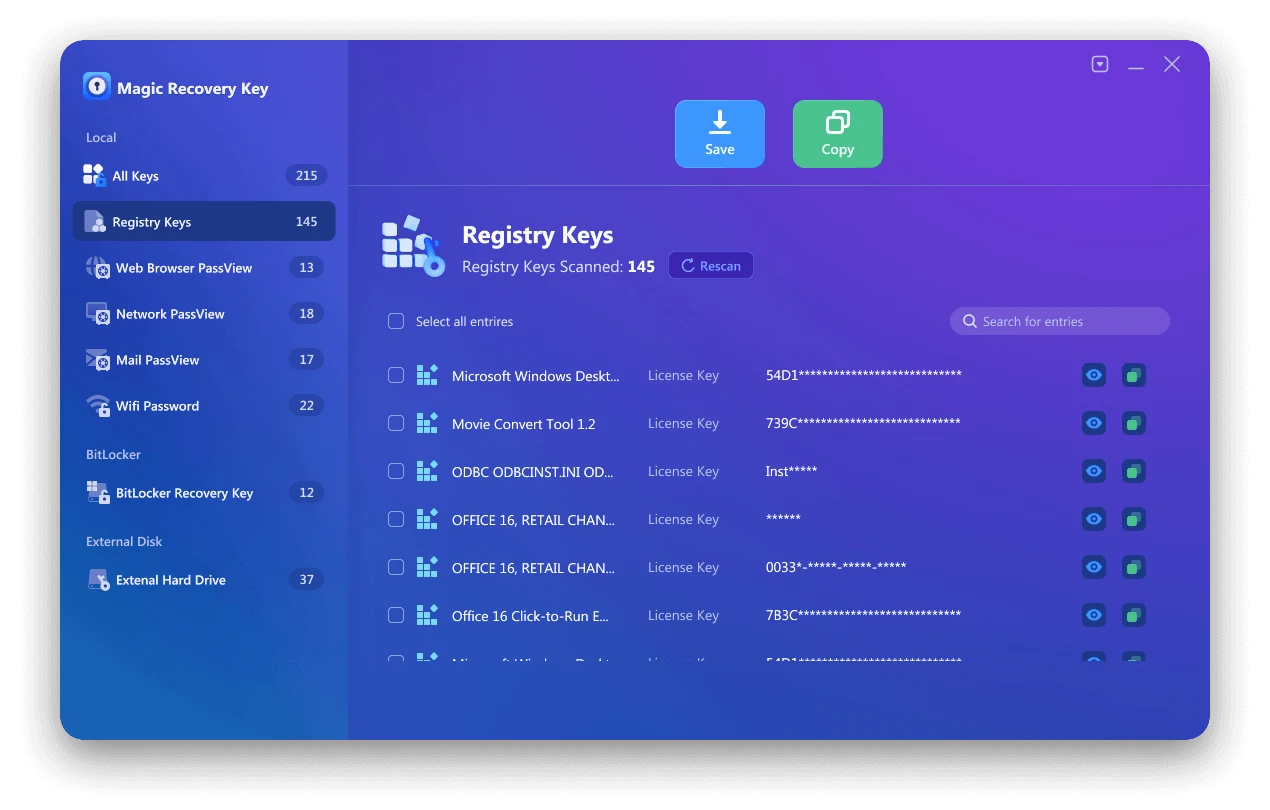
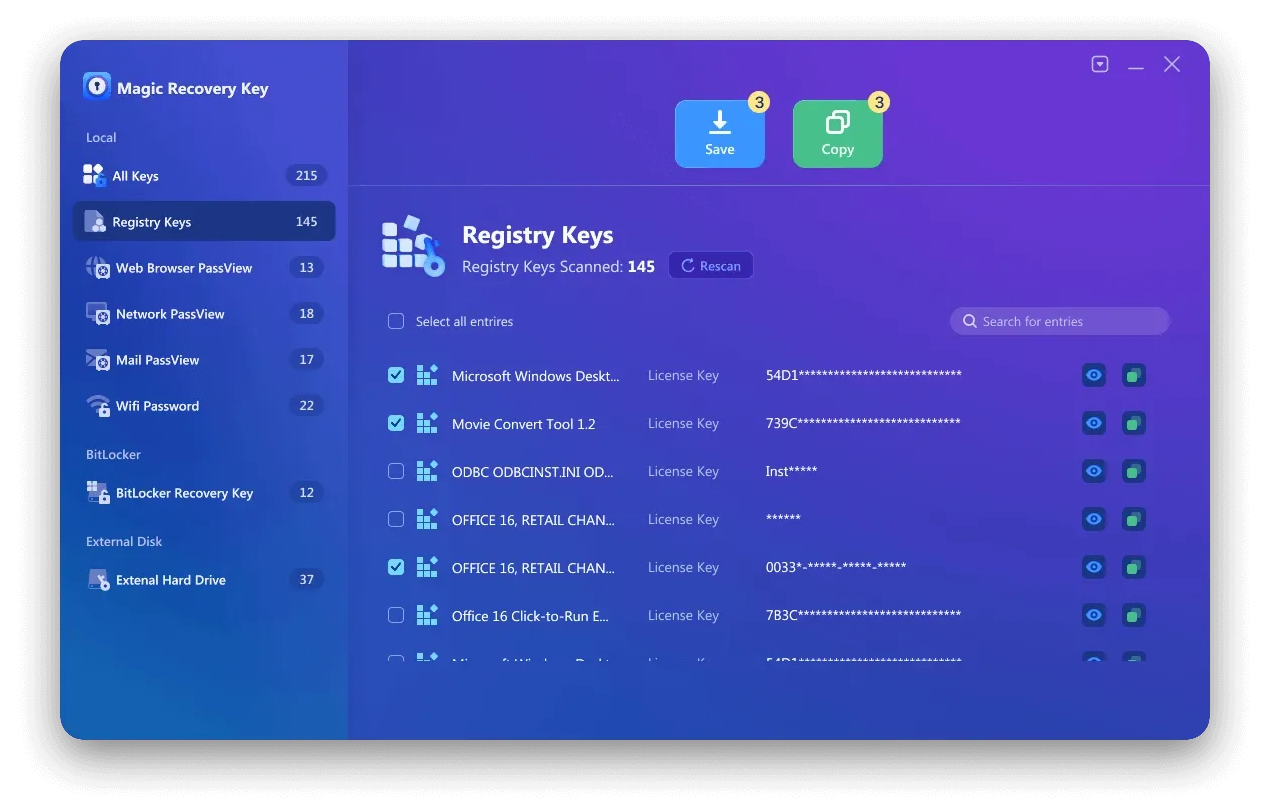
Step 2. On the right panel, view the Applications Registry Keys. Magic Recovery Key will display all keys for installed software. Select and copy the targeted serial numbers. Additionally, you have the option to click either “Copy” or “Save” for your convenience.
Would you like to use Magic Recovery Key to find your Microsoft Office Product key? You can download it to use.
Supports Windows 7/8/10/11 and Windows Server
2. Run CMD to Find Microsoft Office Product Key
Applies to: Office 2013, Office 2016, or Office 2019
This method is effective only if the last five characters of a 25-character Office 2019, Office 2016, or Office 2013 product key are stored on your computer. If that’s the case, you can try this approach to retrieve your Microsoft product keys.
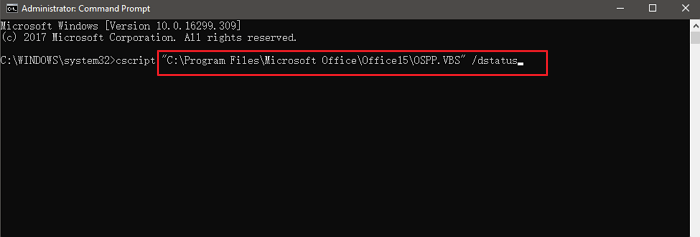
Step 1. Type “CMD” in the search box, right-click on the Command Prompt result, and select “Run as administrator” to execute it with administrative privileges.
Step 2. Type the following command according to your needs.
					Office 2013 (32-bit)(Win32-bit): cscript “C:Program FilesMicrosoft OfficeOffice15OSPP.VBS” /dstatus
Office 2013 (32-bit)(Win64-bit): cscript “C:Program Files (x86)Microsoft OfficeOffice15OSPP.VBS” /dstatus
Office 2013 (64-bit)(Win64-bit): cscript “C:Program FilesMicrosoft OfficeOffice15OSPP.VBS” /dstatus
Step 3. Upon executing the appropriate command or following the necessary steps, your Microsoft Office product key should appear on the screen or in the designated location. Keep in mind that the exact appearance and format might vary depending on the method you used to retrieve it.
3. Open ProduKey to find Microsoft Office Product Key
Applies to: Office 2003, Office 2007, Office 2010, Office 2013
You’re correct about ProduKey being a straightforward tool for finding product keys, particularly for Microsoft products prior to Office 2013. Here’s a more detailed breakdown of how to use ProduKey to retrieve your Microsoft Office product key:
Step 1: Download and Unzip ProduKey
Navigate to a trusted source to download the ProduKey.zip file.
Extract the contents of the zip file to a folder on your computer.
Step 2: Open ProduKey
Locate the produkey.exe file within the extracted folder.
Double-click on produkey.exe to run the program.
Step 3: View the Product Key
Once ProduKey opens, it will automatically scan your system for installed software product keys.
Scroll through the list of products until you find your Microsoft Office version (e.g., Microsoft Office Professional Plus 2010).
The product key for your Office version will be displayed in the “Product Key” column next to the software name.

Note:
ProduKey only displays product keys for Microsoft products and does not support non-Microsoft software.
Ensure you download ProduKey from a reputable source to avoid any potential malware risks.
If you’re using a newer version of Microsoft Office (2016, 2019, or 365), consider using Magic Recovery Key, as ProduKey may not be able to retrieve keys for these
versions.
4. Find Microsoft Office product key with Microsoft Account
Applies to: All Microsoft Office Versions
“If you have previously registered and activated your copy of Microsoft Office 2010, 2013, 2016, or 2019, you’ll be pleased to learn that Microsoft has stored your original product key and can display it for you.”
Step 1. Navigate to your Microsoft Account.
Step 2. Expand the license information section to view your product key.
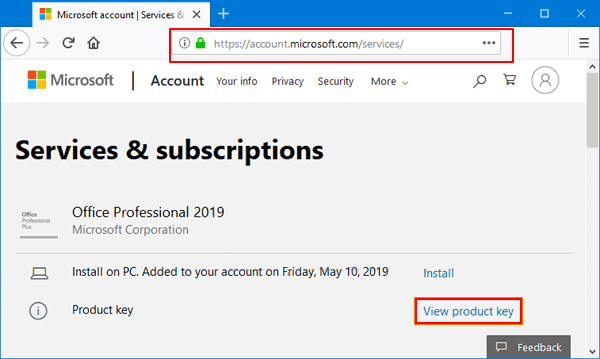
Note: Keep in mind that the availability of viewing product keys through the Microsoft Account might depend on various factors, including how you purchased and activated your Office license. Some keys might not be displayed directly in the account, especially for keys tied to corporate or educational accounts. In such cases, you may need to contact your organization’s IT department or use a third-party key finder tool, such as Magic Recovery Key.
5. Contact the support to get Microsoft Office Product Key
If you cannot locate your microsoft office product key using any of the methods outlined above, the last resort is to contact Microsoft directly. Before doing so, ensure you have proof of purchase.
If you’re facing an issue with your product key and need to speak with a Microsoft representative, you can visit the contact us page. Here, you’ll have the option to seek assistance through the “Get Help” app or to contact support via your browser.
If you have the “Get Help” app installed on your device, opening it will take you directly to a fast and free Microsoft support session. This app is available for Windows 10 users.
Alternatively, getting help through your browser is also quick and free. You’ll be presented with a virtual agent that will assist you in resolving your issue. Simply follow the on-screen instructions to receive help from Microsoft.

6. Activate Microsoft Office Using KMS (For Testing)
In certain enterprise or testing environments, Microsoft Office can be activated by using KMS (Key Management Service) activation. KMS allows organizations to activate Office installations through a centralized server, making it easier to manage licenses across multiple devices.
How KMS activation works
- Microsoft Office connects to a local or authorized KMS server
- Activation is completed automatically without manual key input
- The activation must be renewed periodically to remain valid
How to Activate it Step by Step
(1) First, you need to download the Office ProPlus installation files from the Microsoft website. Only Office 2019 and 2016 are provided here for trial.
(2) After the installation is complete, download the VOL version installation tool by clicking here. Once downloaded, double-click to run it, and you will see the following information.
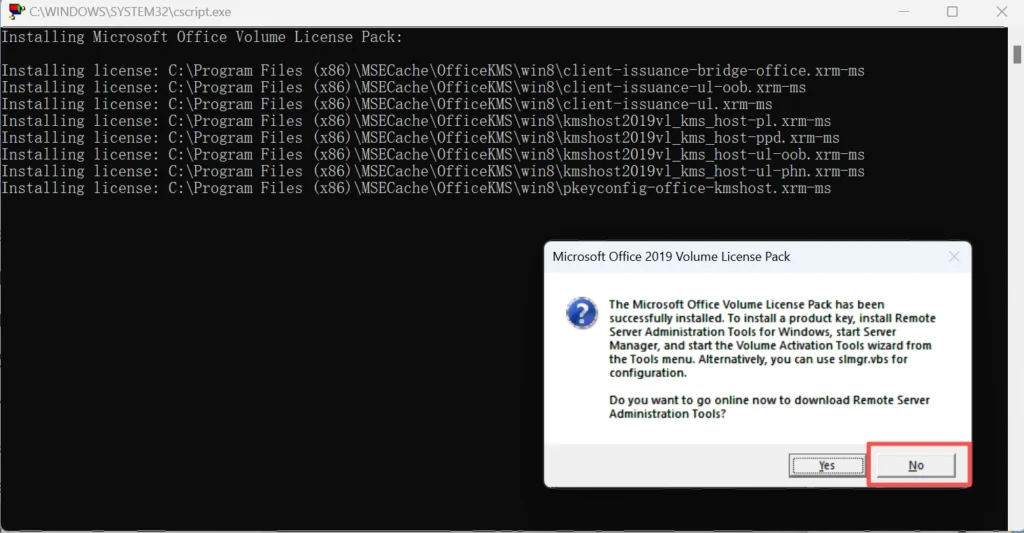
Note: During the installation process, if a prompt appears asking whether to download Remote Server Administration Tools, please click No.
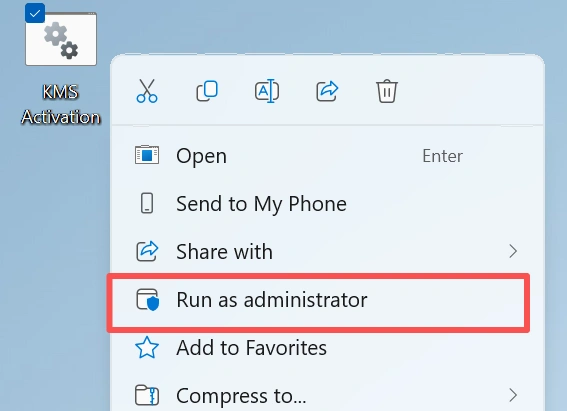
(3) Please download the shared KMS Activation file from GitHub:
KMS Activation File Information:
					if exist "%ProgramFiles%\Microsoft Office\Office16\ospp.vbs" cd /d "%ProgramFiles%\Microsoft Office\Office16"
if exist "%ProgramFiles(x86)%\Microsoft Office\Office16\ospp.vbs" cd /d "%ProgramFiles(x86)%\Microsoft Office\Office16"
cscript ospp.vbs /inpkey:XQNVK-8JYDB-WJ9W3-YJ8YR-WFG99
cscript ospp.vbs /sethst:kms1689.anan.cc
cscript ospp.vbs /setprt:1689
cscript ospp.vbs /act
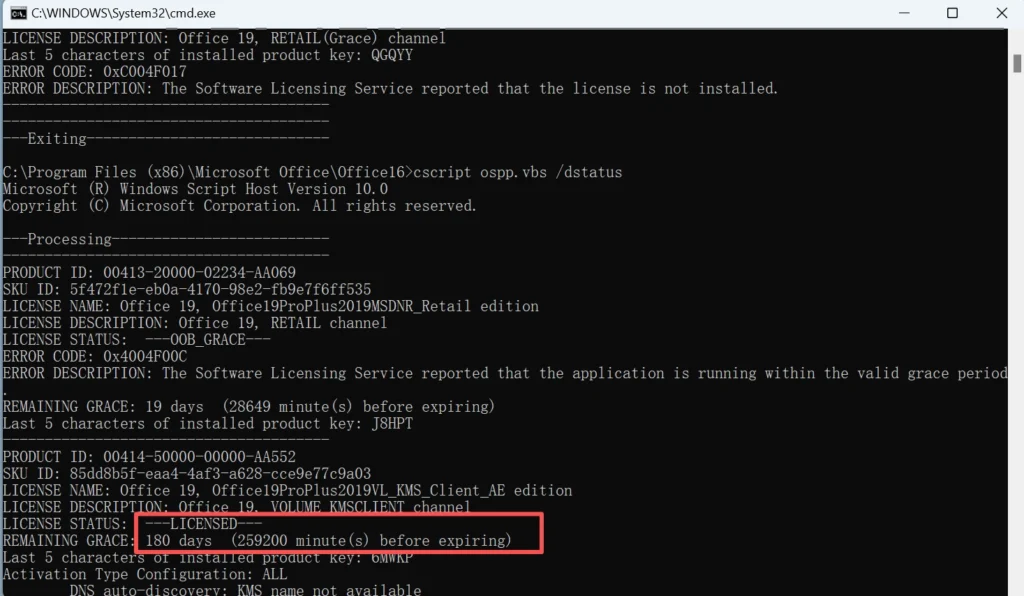
cscript ospp.vbs /dstatus
The ‘inpkey‘ indicates the activation key, and the ‘sethst‘ indicates the KMS host address. If the KMS activation you downloaded cannot be used successfully, you may need to change the activation key or the activation server address. Below are some shared activation keys and KMS host address:
Office 2019 Activation Key:
GRBR4-J4N3M-KTX9C-JM4PJ-J8HPT
NXVJY-X9T8G-Y6RWG-8VQ7V-PWHPT
W8W6K-3N7KK-PXB9H-8TD8W-BWTH9
3Q9NB-GJFJ8-RYVQY-BDGFJ-W46TG
CWGWB-4DN22-H6QV3-W9M3W-4VXGG
XNTT9-CWMM3-RM2YM-D7KB2-JB6DV
BHXN7-MQB36-MTHQ4-8MHKV-CYT97
3XJTG-YNBMY-TBH9M-CWB2Y-YWRHH
6TCQ3-NBBJ2-RTJCM-HFRKV-G6PQV
CGGR9-NQYC7-KRRGM-K4Y8J-XW3K7
For Others version, you can get the key from Microsoft site.
KMS Host Sddress:
- kms.srv.crsoo.com
- cy2617.jios.org
- kms.digiboy.ir
- kms.cangshui.net
You can also get more KMS host address.
Conclusion
Recovering or activating your Microsoft Office product key is not as complicated as it may seem. Depending on your Office version and licensing method, your product key may be stored in the system registry, linked to your Microsoft account, or managed through enterprise activation tools. Methods such as Command Prompt scripts, Microsoft account access, and professional key recovery tools can help you retrieve your Office key quickly.
If your product key is saved locally but difficult to locate manually, Magic Recovery Key offers a simple and reliable way to scan your system and recover your Microsoft Office product key automatically. Choose the method that best fits your situation to restore full access to Microsoft Office.
Supports Windows 7/8/10/11 and Windows Server
FAQs
How can I find my Microsoft Office product key?
Will these methods work for all Office versions (Office 2013, 2016, 2019, 365)?
What if I can’t find the product key using any of the listed methods?
Can I find my Microsoft Office product key from the registry?
Does Office 365 have a traditional product key?
Can I use the same Microsoft Office product key on multiple computers?
What should I do if I lost my Office product key after reinstalling Windows?
Is it possible to recover an Office product key from a crashed or old hard drive?

Erin Smith is recognized as one of the most professional writers at Amagicsoft. She has continually honed her writing skills over the past 10 years and helped millions of readers solve their tech problems.