Skip to content
amagicsoft logo icon
  • Home
  • Products
    • Magic Data Recovery
    • Magic Recovery Key
  • Store
  • Blog
  • More
    • About Amagicsoft
    • Contact US
    • Privacy Policy
    • Terms
    • License Agreement
    • Refund Policy
  • English
    • 日本語
    • 한국어
    • Deutsch
    • Français
    • Español
    • 繁體中文
License Key Recovery

How Do I Repair My Microsoft Office License

29.04.2025 Smith, Erin Comments Off on How Do I Repair My Microsoft Office License

When working with Microsoft Office, maintaining a valid license is paramount for seamless productivity and full access to its vast array of features and benefits. However, at times, license issues may arise due to software updates, system glitches, or even inadvertent deletion of critical files. Fret not, as there are several effective ways to repair your Microsoft Office license and restore your access to essential tools like Word, Excel, and PowerPoint. Let’s delve into the steps and resources you can leverage to resolve these issues swiftly.

Download Magic Recovery Key

Supports Windows 7/8/10/11 and Windows Server

Table of Contents

Solution 1: Utilize the Built-in Repair Option to Repair Microsoft Office License

The simplest approach is often the most effective. Microsoft Office includes a built-in Repair feature that can be accessed via the Control Panel. This feature automatically scans for and fixes common license issues, allowing you to quickly resume your work without any interruptions.

1.1 Repair Office from the Control Panel
repair-office-from-the-control-panel

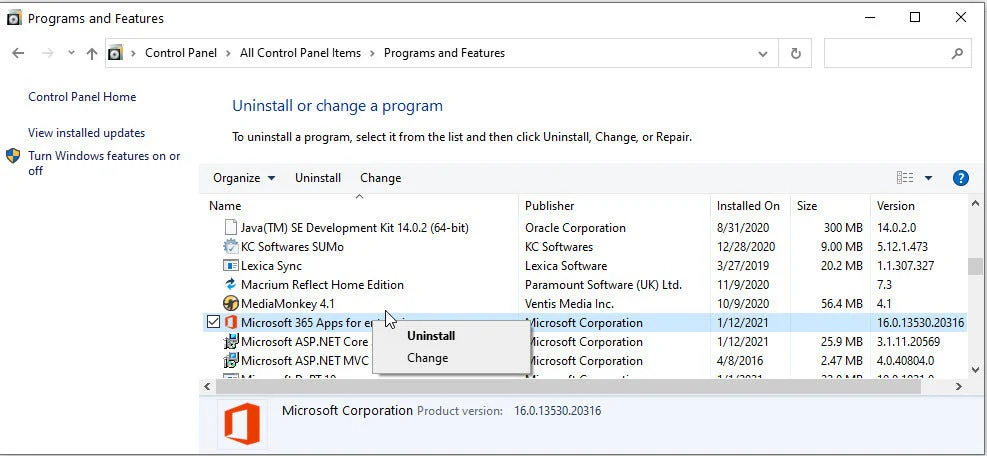
Go to your computer’s settings and navigate to the Control Panel. Look for the “Programs” or “Programs and Features” section. Find Microsoft Office in the list of installed programs, right-click on it, and select “Repair” or “Change”. Follow the prompts to repair your Office installation.

1.2 Use the Office Repair Tool
use-the-office-repair-tool

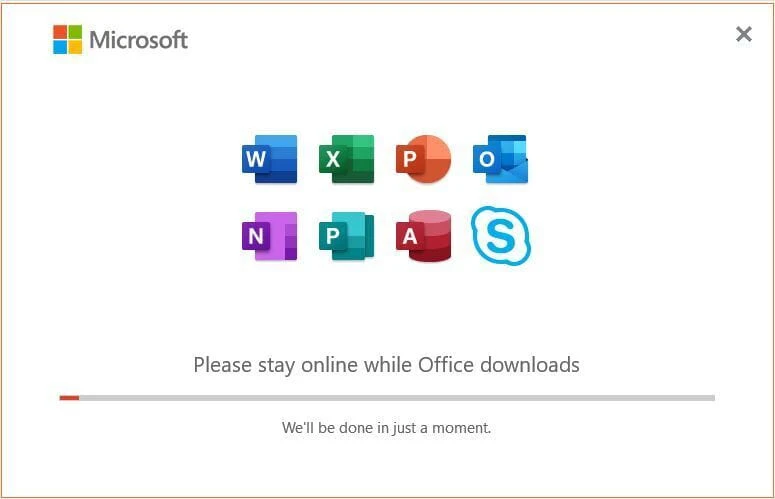
If the Control Panel method does not work, Microsoft offers the Office Repair Tool. This tool can automatically diagnose and repair issues with your Office installation. Download and run the tool from the official Microsoft website.

1.3 Restart and Update Office

If you are experiencing licensing issues with Office, a simple restart of the application or your computer can often resolve the problem. Close all Office applications and restart your computer for a clean start.
restart-and-update-office
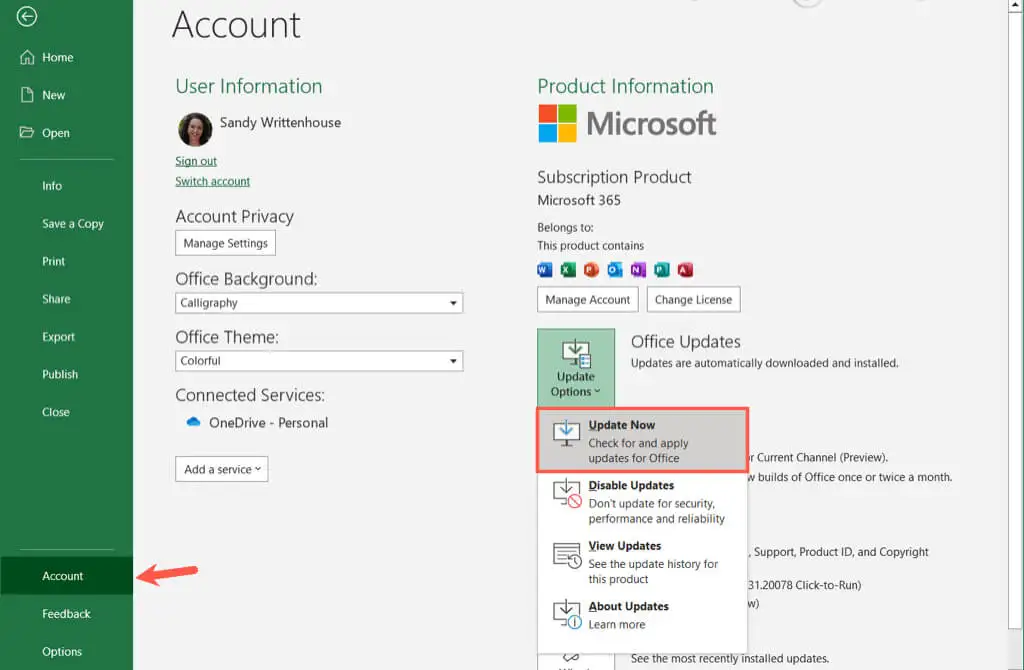
Additionally, ensure that your Office software is up to date with the latest updates and patches. Microsoft regularly releases updates to address bugs, security vulnerabilities, and improve overall performance. Open any Office application, go to the “File” tab, and click on “Account” or “Office Account” (depending on your Office version). From there, click on “Update Options” and select “Update Now.”

Allow the updates to install, and then restart your computer before attempting to use Office again.

1.4 Check for Network Connectivity for Office 365 License

In some cases, a lack of network connectivity can prevent Office from properly verifying your license. Ensure that you have a stable internet connection and try accessing any online services provided by Office to confirm connectivity.

If you are using a proxy server or a VPN, try disabling it temporarily and check if the issue persists. Sometimes, network configurations can interfere with license validation.

Solution 2: Consult Online Resources to solve Microsoft office product key issue

For more complex license problems, Microsoft offers a wealth of online resources, including troubleshooting guides, forums, and customer support. These resources can guide you through step-by-step solutions or connect you with experts who can provide personalized assistance.

2.1 Repair Office Using Microsoft Support and Recovery Assistant
repair-office-using-microsoft-support-and-recovery-assistant
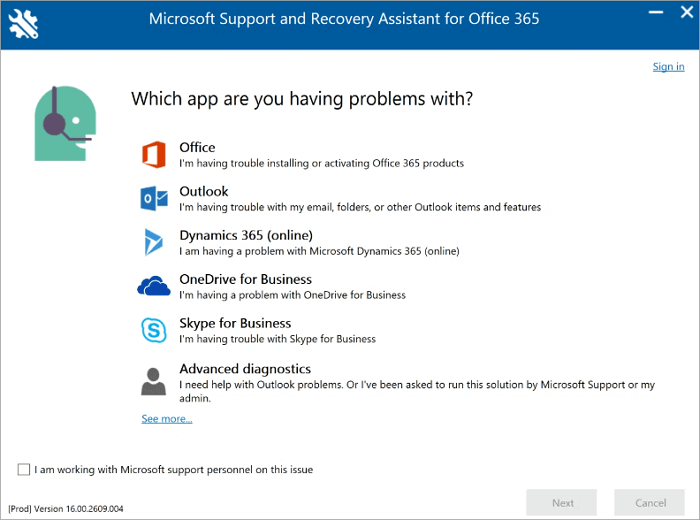
Microsoft provides a tool called the Microsoft Support and Recovery Assistant (SaRA) that can help diagnose and resolve issues with Microsoft Office, including licensing problems. To repair your Office installation using SaRA:

Download the Microsoft Support and Recovery Assistant tool from the official Microsoft website.
Run the downloaded tool and follow the on-screen instructions to diagnose and repair Office-related issues.

Once the repair process is complete, restart your computer.

2.2 Contact Microsoft Support to repair Microsoft office license

contact-microsoft-support-to-repair-microsoft-office-license

If the above methods do not resolve your license issue, it is recommended to contact Microsoft Support directly. They can provide personalized assistance and guide you through the steps to repair your Office license.

Solution 3: Reinstall Microsoft Office to repair Microsoft office license

If the above methods don’t resolve the issue, reinstalling Microsoft Office may be necessary. Ensure you have your Microsoft office product key handy and follow the re-installation instructions provided by Microsoft. This process will replace any corrupted files and restore your access to all Office applications.


Before reinstalling Microsoft Office, it is recommended that you first save your Microsoft Office key using the following method:


3.1 Download and install the smart key finder software, Magic Recovery Key, which supports Windows 11, 10, 8, and 7.
Download Magic Recovery Key

Supports Windows 7/8/10/11 and Windows Server

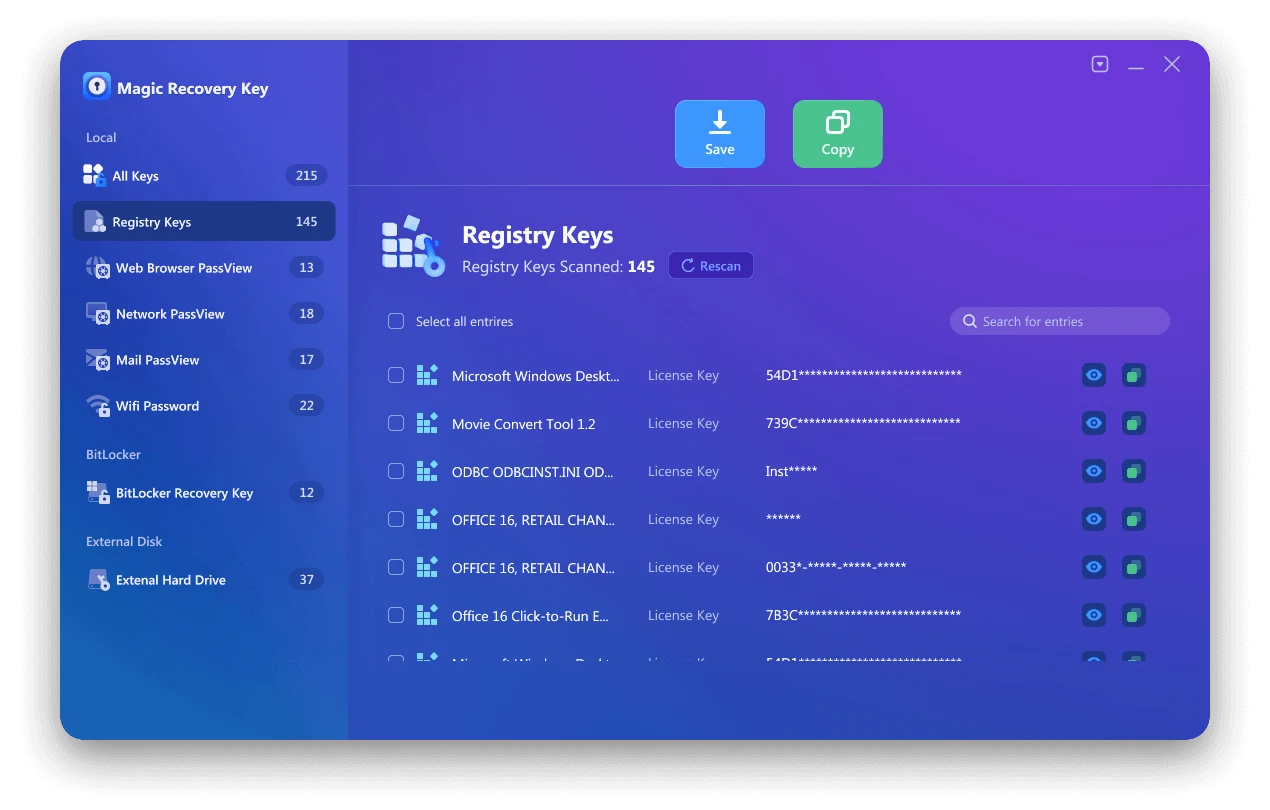
3.2 Click “Registry Keys” tab under “Local“.
magic-recovery-key-register-key-1.

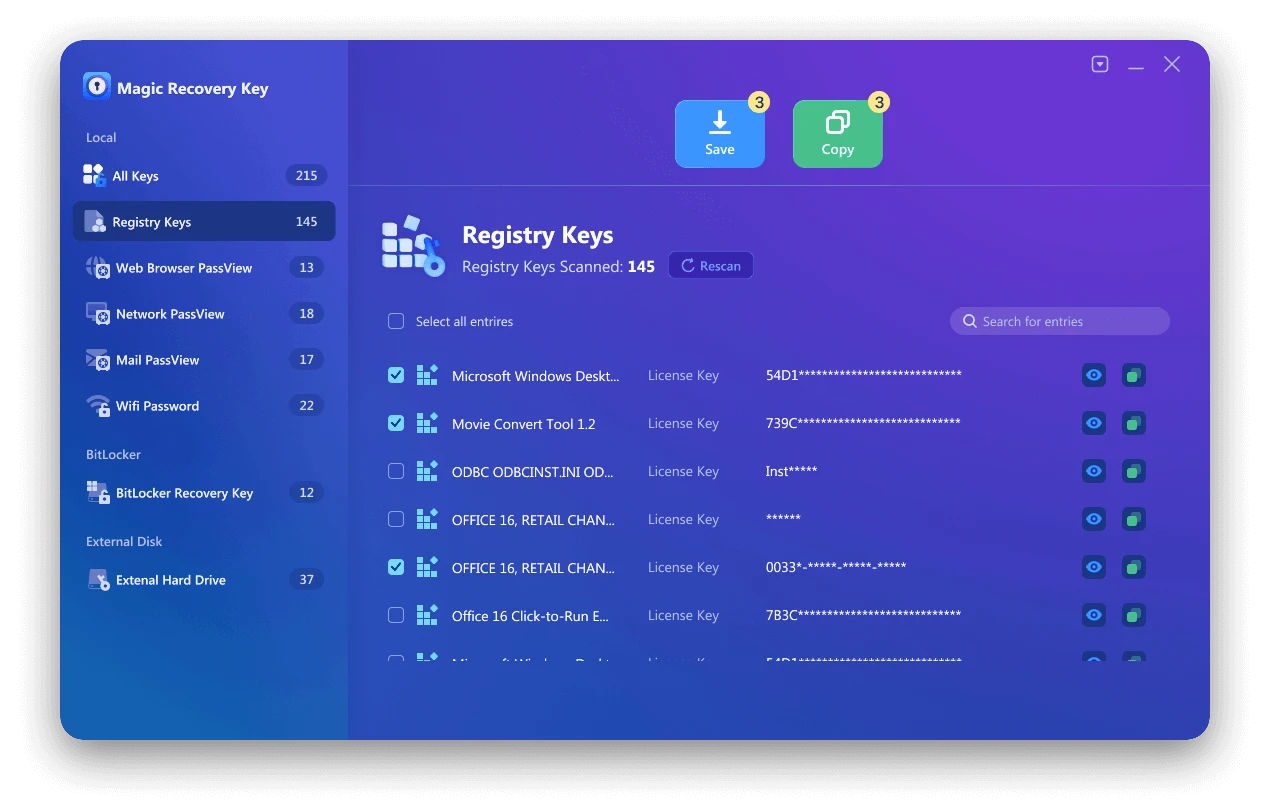
3.3  On the right panel, view the Applications Registry Keys. Magic Recovery Key will display all keys for installed software. Select and copy the targeted serial numbers. Additionally, you have the option to click either “Copy” or “Save” for your convenience.
magic-recovery-key-register-key-2

Magic Recovery Key is a powerful tool that effortlessly locates Windows and Windows Server product keys. It quickly retrieves licenses in case of system or hard disk failure and restores keys for over 10,000 popular programs, keeping your software fully licensed and operational.

Conclusion: How to Effectively Repair Microsoft Office License Errors

When you encounter a Microsoft Office license error, such as “license expired,” “product key not recognized,” or “activation failed,” there’s no need to panic.
Most of these issues can be resolved by following the troubleshooting methods described in the guide — such as repairing activation files, resetting the license service, or restoring the Office product key with a License Key Recovery tool.

If the repair steps do not work and Office needs to be reinstalled, it’s strongly recommended to extract and back up your Office product key first using Magic Recovery Key. This ensures that your license information is safely recovered before reinstalling Office, preventing activation problems or key loss afterward.

By applying the proper repair solution and safeguarding your license key in advance, you can easily reactivate Microsoft Office and continue your work without interruptions.

Download Magic Recovery Key

Supports Windows 7/8/10/11 and Windows Server

Frequently Asked Questions (FAQ)

Q1: Why does my Microsoft Office say “Your license has expired”?

This message often appears when your Office activation data becomes corrupted or invalid. You can repair the activation files or use the License Key Recovery tool to restore your valid license information. Always verify that your Office installation and product key are genuine before reactivating.

Q2: What should I do if Microsoft Office shows “Product key not recognized” or “License status error”?

These errors are commonly caused by damaged registry entries or leftover activation files after a reinstall or Windows update. You can fix this by using the License Key Recovery software to scan for and repair license data. If reinstallation is required, back up your key with Magic Recovery Key to avoid losing it.

Q3: Do I need to reinstall Office to fix license problems?

In most cases, you can repair Microsoft Office license errors without reinstalling the program. However, if system corruption prevents activation from working, a clean reinstall may be necessary. Before doing so, extract your license key using Magic Recovery Key, so you can reactivate Office easily afterward.
  • How to
  • Magic Recovery Key
Smith, Erin

Erin Smith is recognized as one of the most professional writers at Amagicsoft. She has continually honed her writing skills over the past 10 years and helped millions of readers solve their tech problems.
文章导航

Previous
Next

Search

Categories

  • Bitlocker Recovery
  • Deleted File Recovery
  • Disk Issue Fix
  • Documents Recovery
  • Format File Recovery
  • Hard Drive Recovery
  • License Key Recovery
  • Lost File Recovery
  • Memory Card Recovery
  • News
  • Password Recovery
  • Photo Recovery
  • SSD Recovery
  • USB Drive Recovery
  • User Guide
  • Video Recovery
  • Wiki
  • Windows Issue Fix

Recent posts

  • What to Do If Your Flash Drive Is Not Recognized (Fixed)
    What to Do If Your Flash Drive Is Not Recognized
  • How to Fix If Computer Not Recognize a Hard Drive
    How to Fix If Computer Not Recognizing Hard Drive
  • Can You Recover Deleted Files in Windows 10 Yes, Here’s How
    Can You Recover Deleted Files in Windows 10? Yes, Here’s How

Tags

CHKDSK and Disk Tools Disk Repair Error Troubleshooting How to Magic Data Recovery Magic Recovery Key WiKi

Related posts

How to Fix If Computer Not Recognize a Hard Drive
Wiki

How to Fix If Computer Not Recognizing Hard Drive

25.12.2025 Vasilii No comments yet

Is your computer not recognizing your hard drive? Whether it’s an internal or external drive, this issue can arise due to various reasons, from simple connection problems to more complex hardware or software failures. Fortunately, in most cases, you can still recover your data from a hard drive that your computer is not recognizing. This […]

Can You Recover Deleted Files in Windows 10 Yes, Here’s How
Deleted File Recovery

Can You Recover Deleted Files in Windows 10? Yes, Here’s How

25.12.2025 Vasilii No comments yet

Accidentally deleting files from your computer can be a nightmare, especially when they’re crucial documents or photos. But don’t panic—deleted files are often recoverable! In this guide, we’ll show you the best methods to recover deleted files in Windows 10, including software solutions like Magic Data Recovery. By following the right steps, you can restore your […]

How to Recover Deleted Data from a Hard Drive
Deleted File Recovery

How to Recover Deleted Data from a Hard Drive

25.12.2025 Vasilii No comments yet

Accidentally deleting important files from your hard drive can be a nightmare, especially when the data is crucial. Whether it’s a crucial document, photo, or video, the anxiety of losing files can be overwhelming. Fortunately, you don’t have to panic. In most cases, you can recover deleted data from your hard drive even if files […]

amagicsoft logo icon

Our vision is to become a globally renowned software brand and service provider, delivering top-tier products and services to our users.

Products
  • Magic Data Recovery
  • Magic Recovery Key
Policy
  • Terms
  • Privacy Policy
  • Refund Policy
  • License Agreement
Company
  • About Amagicsoft
  • Contact US
  • Store
Follow Us

Copyright © 2025 Amagicsoft. All Rights Reserved.

  • Terms
  • Privacy Policy