Windows 11 24H2 Update (KB5063878) Causes SSD Failures and Potential Data Corruption

Supports Windows 7/8/10/11 and Windows Server
Table of Contents
KB5063878 SSD Issue Affected by Windows 11 24H2 Update
After installing the Microsoft update, the operating system fails to recognize SSDs following prolonged data transfer sessions. If the system is rebooted, the SSD may become entirely inaccessible. Subsequent user tests revealed that not all SSDs are affected, but the following models have been significantly impacted:
- Corsair Force MP600 – Phison E16 controller
- SSDs equipped with Phison E12 controllers
- SanDisk Extreme Pro M.2 NVMe SSD – Triton MP28 controller
- Fikwot FN955 – Maxio MAP1602 + WDS X3 9070 controller
- Kioxia Exceria Plus G4 1TB + Phison E31T controller
Based on current reports, SSDs using Phison controllers appear more prone to issues. Some SSDs may become temporarily inaccessible but recover after a reboot. These include:
- WD Blue SN5000 2TB – Polaris 3 controller
- WD Red SA500 2TB SATA – Marvell 88SS1074 controller
- Crucial P3 Plus – Phison E21T controller
- Corsair MP510 960GB – Phison E12 controller
Four Methods to Completely Disable Update KB5063878
Method 1: Group Policy Editor (Enterprise-Level Control)
Steps:
1. Press Win + R, type gpedit.msc, and press Enter.
2. Navigate to: Computer Configuration > Administrative Templates > Windows Components > Windows Update.
3. Double-click “Configure Automatic Updates” and select “Disabled.”
4. Enable “Remove access to all Windows Update features.”
Advantages: Microsoft’s recommended enterprise-level solution.
Risks: Requires a restart to take effect and may be overridden by future updates
Method 2: Services Manager (Disable Core Services)
Steps:
1. Press Win + R, type services.msc, and press Enter.
2. Locate the “Windows Update” service, set its startup type to “Disabled.”
3. Repeat for the “Update Orchestrator Service.”
4. Restart the computer.
Risks: Some security software may depend on update services.
Method 3: Registry Deep Lock (Ultimate Solution)
Steps:
1. Press Win + R, type regedit, and press Enter.
2. Navigate to: HKEY_LOCAL_MACHINE\SOFTWARE\Policies\Microsoft\Windows.
3. Create a new key named “WindowsUpdate.”
4. Under this key, create a subkey named “AU.”
5. Create a new DWORD value named “NoAutoUpdate” and set its value to 1.
6. Create a new string value named “TargetReleaseVersion” and set its value to 21H2 (to lock the older version).
Effects:
1. Completely blocks update detection.
2. Prevents the system from automatically overriding Group Policy settings.
Method 4: Task Scheduler (Block Update Triggers)
Steps:
1. Press Win + R, type taskschd.msc, and press Enter.
2. Navigate to: Task Scheduler Library > Microsoft > Windows > WindowsUpdate.
3. Disable the following tasks:
- Scheduled Start
- Usoclient
- Reboot
Principle: Cuts off the background task chain that automatically triggers updates.
How to Uninstall KB5063878
If you have already installed the KB5063878 update, it is recommended to uninstall it to avoid potential issues. Follow these steps:
1. Run PowerShell as an administrator.
2. Enter the following command to uninstall the update:
wusa /uninstall /kb:5063878 /quiet /norestart
wmic qfe list | find "5063878"
How to Recover Data Lost Due to KB5063878
Supports Windows 7/8/10/11 and Windows Server

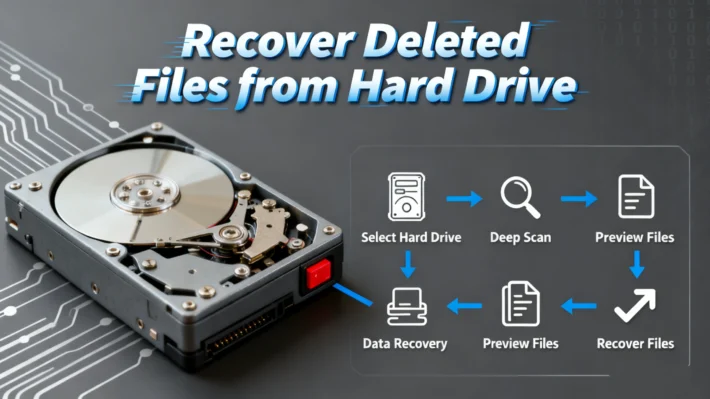
3. After the scan completes, review the listed files and select the ones you wish to recover.

4. Use the preview feature to confirm the files are recoverable.

5. Once the recovery process is complete, check the saved directory for the restored data.

Conclusion
Supports Windows 7/8/10/11 and Windows Server
FAQ
1. What is the KB5063878 update?
2. Can I prevent the KB5063878 update from installing?
3. How do I uninstall the KB5063878 update?

Erin Smith is recognized as one of the most professional writers at Amagicsoft. She has continually honed her writing skills over the past 10 years and helped millions of readers solve their tech problems.