Skip to content
amagicsoft logo icon
  • Home
  • Products
    • Magic Data Recovery
    • Magic Recovery Key
  • Store
  • Blog
  • More
    • About Amagicsoft
    • Contact US
    • Privacy Policy
    • Terms
    • License Agreement
    • Refund Policy
  • English
    • 日本語
    • 한국어
    • Deutsch
    • Français
    • 繁體中文
Bitlocker Recovery

What is TPM?

01.05.2025 Smith, Erin Comments Off on What is TPM?

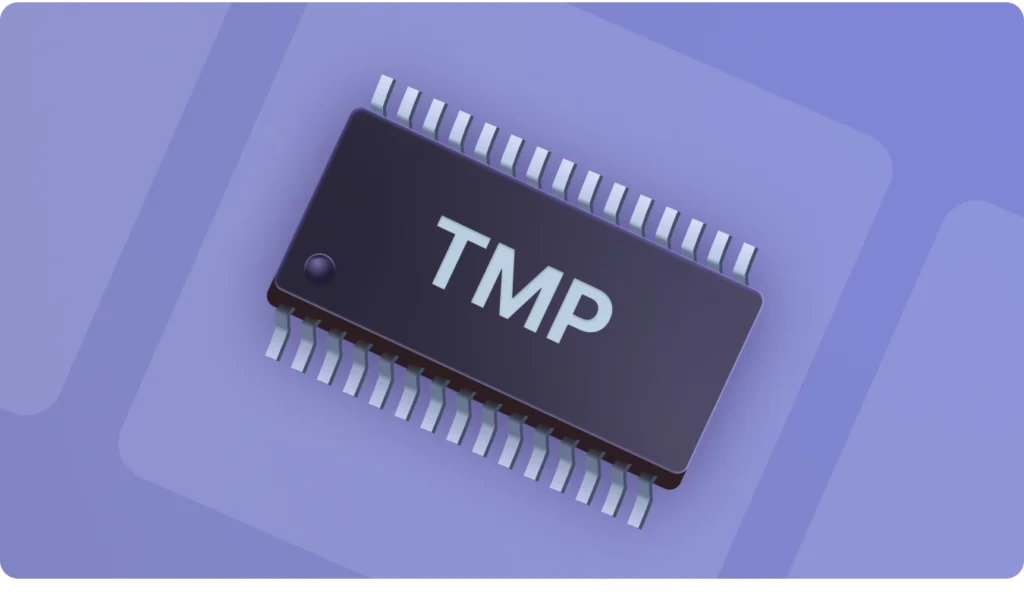
A Trusted Platform Module (TPM) is utilized to enhance the security of your PC. It is employed by services such as BitLocker drive encryption and Windows Hello, among others, to securely generate and store cryptographic keys. Additionally, it verifies the authenticity of your device’s operating system and firmware, ensuring they haven’t been tampered with.


Generally, it is a standalone chip on the motherboard, although the TPM 2.0 standard permits manufacturers like Intel or AMD to integrate TPM capabilities into their chipsets, eliminating the need for a separate chip.


TPM has been in existence for over two decades and has been incorporated into PCs since around 2005. As of this writing, in 2016, TPM version 2.0 became the standard in new PCs.


Does My PC Already Have TPM?


There’s a good chance your PC already has TPM, and if it’s less than five years old, you likely have TPM 2.0.

To check if your Windows 10 PC has TPM, navigate to Start > Settings > Update & Security > Windows Security > Device Security. If TPM is present, you’ll see a “Security processor” section on the screen.
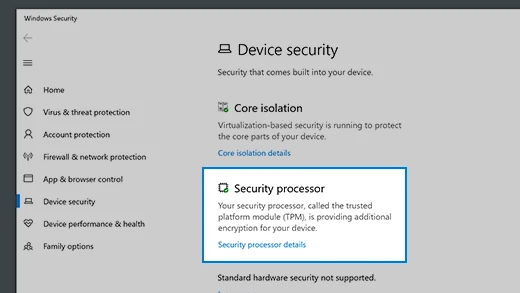
 

Does My PC Already Have TPM


The next step is to determine the version of TPM your PC has. Click on “Security processor details,” and look for the “Specification version” on the subsequent screen. It should indicate either “1.2” or “2.0.”


How to Enable TPM 2.0 in BIOS


How to enable TPM in BIOS? The TPM 2.0 enable process is very simple. You just need to do 2 steps.
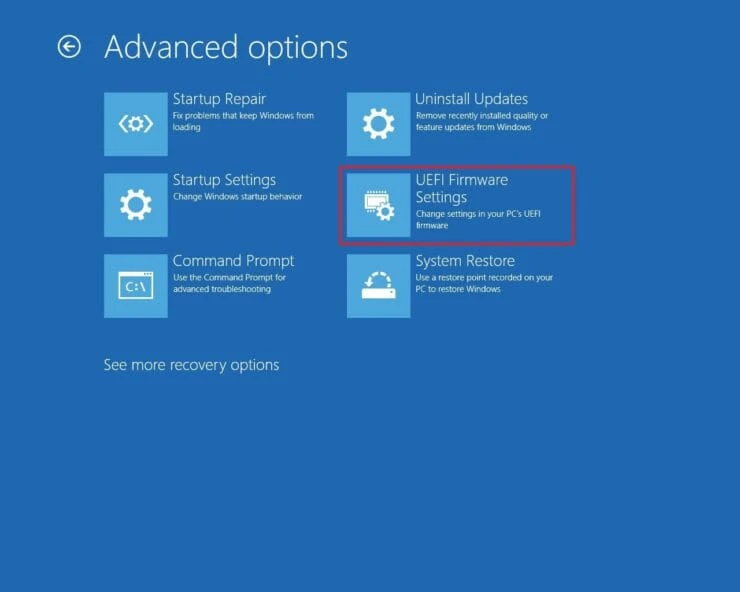
 

How to Enable TPM 2.0 in BIOS


Step 1: Enter BIOS. Most PCs can enter BIOS in this way


Select Settings > Update & Security > Recovery > Restart now, and then from the next screen, choose Troubleshoot > Advanced options > UEFI Firmware Settings > Restart. Of course, there are other ways:


Use the BIOS key: Shut the PC completely. Power on the PC. When the PC logo appears, press the BIOS key. The BIOS key may be Del, F1, F2, F10, Esc, etc. You can try them.


Microsoft Surface Only: Shut down your Surface. Press and hold the volume-up button on your Surface and at the same time, press and release the power button. When you see the Surface logo, release the volume-up button. The UEFI menu will display within a few seconds.


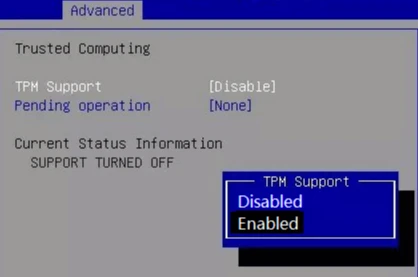
Step 2: Enable TPM 2.0


You need to go to the Advanced, Security, or Trusted Computing tab. Then, enable the TPM. It may be labeled Security Device, Security Device Support, TPM State, AMD fTPM switch, AMD PSP fTPM, Intel PTT, or Intel Platform Trust Technology.


Dell: For Latitude, OptiPlex, Precision, Vostro, and select XPS, go to Security, select TPM 2.0 Security, and select TPM On. For Alienware, go to Security and set Firmware TPM to enabled. For Inspiron, select Security and switch the toggle under Intel Platform Trust Technology to On.


Lenovo: Go to Security > Security Chip. Then, check to see if the Security Chip Type is TPM and if the Security Chip is Enabled.
 

Magic Recovery Key List Keys


Microsoft Surface: Once you enter BIOS, you will see the Trusted Platform Module (TPM) Make sure it is enabled.


HP: Go to the Security tab to make sure the TPM Device status is Available. Then, change TPM State to Enabled.


ASUS: For Intel motherboards, go to the AdvancedPCH-FW Configuration page and enable PTT. For AMD motherboards, go to the AdvancedAMD fTPM configuration page and switch the TPM Device Selection option to Firmware TPM.


If your computer is not listed in the aforementioned solutions, you will need to contact your computer vendor’s customer service to inquire further about how to access the BIOS and enable TPM 2.0.

  • Magic Recovery Key
Smith, Erin

Erin Smith is recognized as one of the most professional writers at Amagicsoft. She has continually honed her writing skills over the past 10 years and helped millions of readers solve their tech problems.

文章导航

Previous
Next

Search

Categories

  • Bitlocker Recovery
  • Deleted File Recovery
  • Disk Issue Fix
  • Format File Recovery
  • Hard Drive Recovery
  • License Key Recovery
  • Lost File Recovery
  • Memory Card Recovery
  • News
  • Password Recovery
  • Photo Recovery
  • SSD Recovery
  • USB Drive Recovery
  • User Guide
  • Video Recovery
  • Wiki

Recent posts

  • recover deleted files from pen drive
    How to Recover Deleted Files from Pen Drive in 7 Effective Ways
  • recover deleted files from hard drive
    How to Recover Deleted Files from Hard Drive
  • why A disk read error occurred happens
    A Disk Read Error Occurred: Causes, Fixes & Data Recovery Tips

Tags

Disk Repair Error Troubleshooting How to Magic Data Recovery Magic Recovery Key WiKi

Related posts

BitLocker CMD Encrypt and Manage Drives
Bitlocker Recovery

BitLocker CMD: Encrypt and Manage Drives

14.12.2025 Vasilii Comments Off on BitLocker CMD: Encrypt and Manage Drives

Losing access to your encrypted drives or forgetting your BitLocker password can be frustrating and disruptive. For IT administrators and everyday users alike, managing BitLocker through the command line offers flexibility and control. This guide will explain how to use BitLocker CMD effectively, from encryption to recovery, while introducing Magic Recovery Key as a reliable […]

unlock bitlocker drive on another computer
Bitlocker Recovery

How to Unlock BitLocker Drive on Another Computer

14.12.2025 Smith, Erin Comments Off on How to Unlock BitLocker Drive on Another Computer

Losing access to a BitLocker-encrypted drive on a different computer can be frustrating. Many users face this challenge when migrating drives, replacing computers, or troubleshooting encrypted storage. Without the BitLocker recovery key, data access becomes nearly impossible. This guide will show you how to unlock BitLocker drive on another computer safely and efficiently. You’ll also […]

Why Did BitLocker Install Itself A Complete Guide
Bitlocker Recovery

Why Did BitLocker Install Itself? A Complete Guide

14.12.2025 Vasilii Comments Off on Why Did BitLocker Install Itself? A Complete Guide

Imagine turning on your Windows PC only to be greeted by a BitLocker recovery screen demanding a 48-digit BitLocker recovery key—one you never set up or saved. You didn’t manually enable BitLocker install, yet there it is, fully active. This isn’t a glitch. It’s a feature of modern Windows that can catch even experienced users […]

amagicsoft logo icon

Our vision is to become a globally renowned software brand and service provider, delivering top-tier products and services to our users.

Products
  • Magic Data Recovery
  • Magic Recovery Key
Policy
  • Terms
  • Privacy Policy
  • Refund Policy
  • License Agreement
Company
  • About Amagicsoft
  • Contact US
  • Store
Follow Us

Copyright © 2025 Amagicsoft. All Rights Reserved.

  • Terms
  • Privacy Policy