Skip to content
amagicsoft logo icon
  • Home
  • Products
    • Magic Data Recovery
    • Magic Recovery Key
  • Store
  • Blog
  • More
    • About Amagicsoft
    • Contact US
    • Privacy Policy
    • Terms
    • License Agreement
    • Refund Policy
  • English
    • 日本語
    • 한국어
    • Deutsch
    • Français
    • 繁體中文
Photo Recovery

How to Do Deleted Photo Recovery: Best Software in 2025

09.10.2025 Smith, Erin Comments Off on How to Do Deleted Photo Recovery: Best Software in 2025
How to Do Deleted Photo Recovery: Best Software in 2025

Losing precious photos can be devastating — whether it’s family memories, professional work, or critical business images. But the good news is that deleted photo recovery is often possible, even if you think your files are gone forever. With the right tools and techniques, you can recover deleted photos quickly and safely.

In this guide, we’ll explain how deleted photo recovery works, explore different methods, and show you why Magic Data Recovery is one of the best deleted photo recovery software solutions available — even offering a free download to get started.

Download Magic Data Recovery

Supports Windows 7/8/10/11 and Windows Server
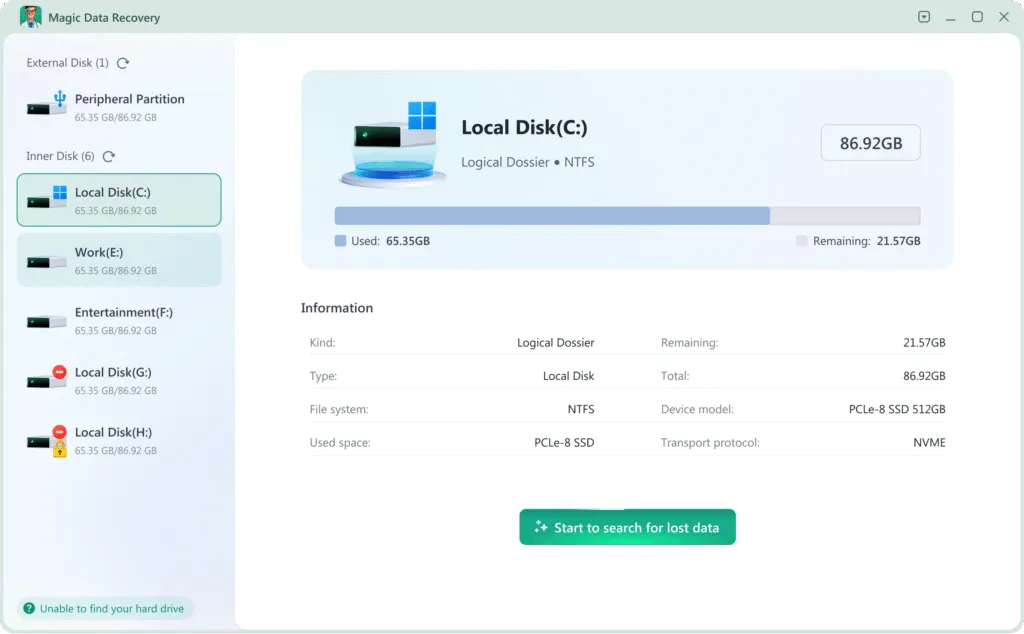
Table of Contents

Common Causes of Photo Loss

Photos can be lost for many reasons. Understanding the cause helps you choose the best recovery method:

Accidental deletion: The most common cause — files deleted manually or emptied from the Recycle Bin.

Formatting errors: Accidentally formatting an SD card or USB drive wipes all files.

Corrupted storage devices: Hardware or file system damage can make photos inaccessible.

Malware attacks: Some viruses delete or encrypt image files.

Operating system errors: Sudden crashes or updates can lead to data loss.

No matter the cause, Magic Data Recovery is designed to handle all these scenarios with high success rates.

Methods of Deleted Photo Recovery: Pros and Cons

Before choosing a recovery solution, it’s important to understand your options:

Method

Pros

Cons

Best for

Manual recovery (Recycle Bin, backups)

Easy, free

Not possible if no backup or emptied bin

Simple accidental deletions

Data recovery services

Very effective

Expensive, time-consuming

Physically damaged drives

Magic Data Recovery-photo recovery

Fast, affordable, DIY-friendly

May require installation

Most logical deletions and storage errors

✅ Best overall solution: Using a reliable deleted photo recovery software strikes the perfect balance between cost, speed, and effectiveness.

Why Choose Magic Data Recovery Software

When it comes to deleted photo recovery, not all tools are created equal. Magic Data Recovery stands out as a powerful, professional-grade solution trusted by users worldwide.

Here’s why:

Advanced Photo Recovery Technology

Magic Data Recovery uses deep scan algorithms that detect and reconstruct deleted images even after formatting, partition loss, or system crashes.

Supports All Image Formats

Whether it’s JPEG, PNG, RAW, TIFF, BMP, or proprietary camera formats, Magic Data Recovery supports them all — ensuring no photo is left behind.

Wide Device Compatibility

It works with internal hard drives, external HDDs, SSDs, SD cards, USB flash drives, and even digital cameras.

Safe and Read-Only Operation

The software is designed to never overwrite your data, ensuring the recovery process is 100% safe.

Free Download and Easy-to-Use Interface

Try before you buy. The free version lets you scan and preview recoverable photos before deciding to upgrade, it can also recover less than 500MB photos for testing.

How to Do Deleted Photo Recovery Using Magic Data Recovery (Step-by-Step)

Following these steps will give you the best chance to do deleted photo recovery using Magic Data Recovery:

1. Download and Install Safely: Download and install Magic Data Recovery on a different drive than the one you are recovering from. This prevents overwriting lost files.

Download Magic Data Recovery

Supports Windows 7/8/10/11 and Windows Server

2. Select and Scan: Launch the software. Select the hard drive that lost data and click ‘Search for lost data’. The software will perform a quick scan followed by a deep scan.
How to Recover Files from a Formatted HDD
3. Preview and Select: After the scan, browse the recoverable files. Use the preview function to verify photos or documents.
Previewing recovered files with the SD card recovery program
4. Recover to a Safe Location: Select the files you need and save them to a different healthy drive. Do not save them back to the original damaged drive.
Save recovered files using the SD card recovery program
💡 Pro Tip: For the best results, always recover files to a different storage device to avoid data overwriting.
You can also watch the video to learn about the usage steps of Magic Data Recovery.

Final Thoughts: Restore Your Precious Memories with Magic Data Recovery

Photo loss can feel devastating, but with the right deleted photo recovery software, you can often bring back what you thought was gone forever.

Magic Data Recovery combines professional-grade scanning algorithms, an intuitive interface, and broad device support, making it one of the best choices for anyone who needs to recover deleted photos — whether you’re a photographer, business user, or casual user.

Don’t wait until it’s too late — download Magic Data Recovery software for free and start recovering your deleted photos today.

Download Magic Data Recovery

Supports Windows 7/8/10/11 and Windows Server

FAQs

1. Can I recover photos deleted months ago?

Yes. As long as the storage space hasn’t been overwritten, Magic Data Recovery can often recover photos even after months.

2. Is deleted photo recovery software safe to use?

Absolutely. Magic Data Recovery operates in read-only mode and never writes to your storage device during scanning.

3. Can I recover photos from an SD card or USB drive?

Yes. Magic Data Recovery supports all major storage media, including SD cards, USB drives, and external hard disks.
  • How to
  • Magic Data Recovery
Smith, Erin

Erin Smith is recognized as one of the most professional writers at Amagicsoft. She has continually honed her writing skills over the past 10 years and helped millions of readers solve their tech problems.
文章导航

Previous
Next

Search

Categories

  • Bitlocker Recovery
  • Deleted File Recovery
  • Disk Issue Fix
  • Format File Recovery
  • Hard Drive Recovery
  • License Key Recovery
  • Lost File Recovery
  • Memory Card Recovery
  • News
  • Password Recovery
  • Photo Recovery
  • SSD Recovery
  • USB Drive Recovery
  • User Guide
  • Video Recovery
  • Wiki

Recent posts

  • recover deleted files from pen drive
    How to Recover Deleted Files from Pen Drive in 7 Effective Ways
  • recover deleted files from hard drive
    How to Recover Deleted Files from Hard Drive
  • why A disk read error occurred happens
    A Disk Read Error Occurred: Causes, Fixes & Data Recovery Tips

Tags

Disk Repair Error Troubleshooting How to Magic Data Recovery Magic Recovery Key WiKi

Related posts

recover deleted files from pen drive
Deleted File Recovery

How to Recover Deleted Files from Pen Drive in 7 Effective Ways

19.12.2025 Smith, Erin No comments yet

Losing important files from a USB flash drive can be frustrating. Whether you accidentally pressed Delete, formatted the drive by mistake, or encountered a file system error, data loss on pen drives happens more often than most users expect. In many cases, recover deleted files from pen drive is still possible. When files are deleted, […]

recover deleted files from hard drive
Deleted File Recovery

How to Recover Deleted Files from Hard Drive

19.12.2025 Smith, Erin No comments yet

Accidentally deleting important files from your hard drive can be a nightmare. Whether it’s a sudden power outage, human error, or even a system crash, data loss is a situation most people have faced at some point. Fortunately, To recover deleted files from hard drive is possible, and it doesn’t have to be as complicated […]

why A disk read error occurred happens
Disk Issue Fix

A Disk Read Error Occurred: Causes, Fixes & Data Recovery Tips

19.12.2025 Smith, Erin No comments yet

Encountering the error message “A disk read error occurred” when your computer boots can be alarming. This message usually appears on a black screen and prevents Windows from starting normally—leaving many users confused about the next step. Simply pressing Ctrl+Alt+Del typically just restarts the machine but does not resolve the underlying problem. In this article, […]

amagicsoft logo icon

Our vision is to become a globally renowned software brand and service provider, delivering top-tier products and services to our users.

Products
  • Magic Data Recovery
  • Magic Recovery Key
Policy
  • Terms
  • Privacy Policy
  • Refund Policy
  • License Agreement
Company
  • About Amagicsoft
  • Contact US
  • Store
Follow Us

Copyright © 2025 Amagicsoft. All Rights Reserved.

  • Terms
  • Privacy Policy