Skip to content
amagicsoft logo icon
  • Home
  • Products
    • Magic Data Recovery
    • Magic Recovery Key
  • Store
  • Blog
  • More
    • About Amagicsoft
    • Contact US
    • Privacy Policy
    • Terms
    • License Agreement
    • Refund Policy
  • English
    • 日本語
    • 한국어
    • Deutsch
    • Français
    • 繁體中文
Memory Card Recovery

How to Recover Formatted SD Card on Windows

12.10.2025 Smith, Erin Comments Off on How to Recover Formatted SD Card on Windows
How to Recover Formatted SD Card on Windows

Accidentally formatted sd card? Don’t panic. Whether it held precious photos, critical work files, or personal data, the situation is often recoverable. With the right sd data recovery software, you can safely restore your lost files on Windows.

This guide explains why data recovery after a format is possible, compares your options, and provides a step-by-step tutorial to get your files back.

Download Magic Data Recovery

Supports Windows 7/8/10/11 and Windows Server

Table of Contents

Why You Can Recover Formatted SD Card Data

Formatting an SD card doesn’t immediately erase your files. Instead, it removes the file system’s “index” that points to where your files are stored. The actual data remains until it’s overwritten.

Quick Format: Only deletes the index. Your data remains fully recoverable.Full Format: Wipes the index and overwrites data, making recovery very difficult.

➡️ The key is to stop using the SD card immediately to prevent overwriting your files. (Microsoft’s documentation confirms that data isn’t instantly erased [Source: Microsoft Learn]).

Two Ways to Recover Formatted SD Card on Windows

1. Using Built-in Windows Tools (Limited & Complex)

Tools like Windows File Recovery (WinFR) are free but have major drawbacks:

Command-Line Based: Not user-friendly for most.Low Success Rate: Often ineffective for formatted drives.Limited File Support: May not find all your file types.

Verdict: Not recommended for most users trying to recover formatted sd card.

2. Using SD Data Recovery Software (Recommended)

This is the most effective method. Professional sd data recovery software can perform deep scans to rebuild lost file structures and recover a wide range of file types.

While tools like Disk Drill and EaseUS are popular, their free versions are often limited. For a powerful and user-friendly experience, we recommend Magic Data Recovery.

Why Choose Magic Data Recovery for SD Card Recovery

Magic Data Recovery is a professional tool designed to recover data from SD cards, USB drives, and other storage devices, especially after accidental formatting.

Key Advantages:

✅ Deep Scan Technology: Recovers files even after a format.

✅ File Preview: See your photos and files before recovery.

✅ Wide Format Support: Recovers photos, videos, documents, and more.

✅ Safe & Read-Only: Won’t write to or damage your SD card.

✅ Easy to Use: No technical skills needed.

How to Recover a Formatted SD Card with Magic Data Recovery

Follow these steps to recover formatted sd card data:

1. Download and Install: Get Magic Data Recovery from the official website and install it on your computer.

Download Magic Data Recovery

Supports Windows 7/8/10/11 and Windows Server

2. Connect SD Card: Insert your accidentally formatted sd card into your PC.

3. Select the Drive: Launch the software and choose your SD card from the list.

Connect the initialized SD card to PC before running the SD card recovery program
4. Start the Scan: Click “Search for Lost Data” to begin. It will start Quick Scan first then Deep scan to find more lost files.
Previewing recovered files with the SD card recovery program
5. Preview and Select: Browse and preview the found files after the scan.
Preview files on the SD card recovery program
6. Recover: Select the files you need and save them to a different drive (not the SD card).
Save recovered files using the SD card recovery program
You can also watch the video to learn about the usage steps of Magic Data Recovery.

Pro Tips for Success

Act immediately after you realize you’ve accidentally formatted sd card.

Always save recovered files to a different storage device.

For physically damaged cards, seek professional services.

Conclusion

If you’ve accidentally formatted sd card, recovery is often possible. While Windows tools exist, the most reliable and user-friendly method is to use dedicated sd data recovery software. Magic Data Recovery provides a powerful, all-in-one solution to recover formatted sd card files on Windows with a high success rate.
Download Magic Data Recovery

Supports Windows 7/8/10/11 and Windows Server

FAQ

1. What is the best method to recover formatted SD card?

The most reliable and user-friendly method is to use professional SD data recovery software like Magic Data Recovery. While Windows has built-in tools, they are often ineffective and technically complex for this specific task. Software solutions provide deep scanning and a high success rate for formatted SD card recovery.

2. Can I recover files from a formatted SD card without software?

It is possible but not recommended for most users. The Windows Command Prompt can be used with tools like chkdsk, but this is risky and requires technical knowledge. For a safe and guaranteed result, using dedicated software is the best approach to recover formatted SD card data.

3. How long does it take to recover a formatted SD card?

The time required depends on the scan method and your SD card's capacity. A Quick Scan may take a few minutes, while a Full/Deep Scan on a larger card can take several hours. The key is to be patient and let the software complete its deep scan to maximize the number of files you can recover from the formatted SD card.
  • How to
  • Magic Data Recovery
Smith, Erin

Erin Smith is recognized as one of the most professional writers at Amagicsoft. She has continually honed her writing skills over the past 10 years and helped millions of readers solve their tech problems.
文章导航

Previous
Next

Search

Categories

  • Bitlocker Recovery
  • Deleted File Recovery
  • Disk Issue Fix
  • Format File Recovery
  • Hard Drive Recovery
  • License Key Recovery
  • Lost File Recovery
  • Memory Card Recovery
  • News
  • Password Recovery
  • Photo Recovery
  • SSD Recovery
  • USB Drive Recovery
  • User Guide
  • Video Recovery
  • Wiki

Recent posts

  • recover deleted files from pen drive
    How to Recover Deleted Files from Pen Drive in 7 Effective Ways
  • recover deleted files from hard drive
    How to Recover Deleted Files from Hard Drive
  • why A disk read error occurred happens
    A Disk Read Error Occurred: Causes, Fixes & Data Recovery Tips

Tags

Disk Repair Error Troubleshooting How to Magic Data Recovery Magic Recovery Key WiKi

Related posts

recover deleted files from pen drive
Deleted File Recovery

How to Recover Deleted Files from Pen Drive in 7 Effective Ways

19.12.2025 Smith, Erin No comments yet

Losing important files from a USB flash drive can be frustrating. Whether you accidentally pressed Delete, formatted the drive by mistake, or encountered a file system error, data loss on pen drives happens more often than most users expect. In many cases, recover deleted files from pen drive is still possible. When files are deleted, […]

recover deleted files from hard drive
Deleted File Recovery

How to Recover Deleted Files from Hard Drive

19.12.2025 Smith, Erin No comments yet

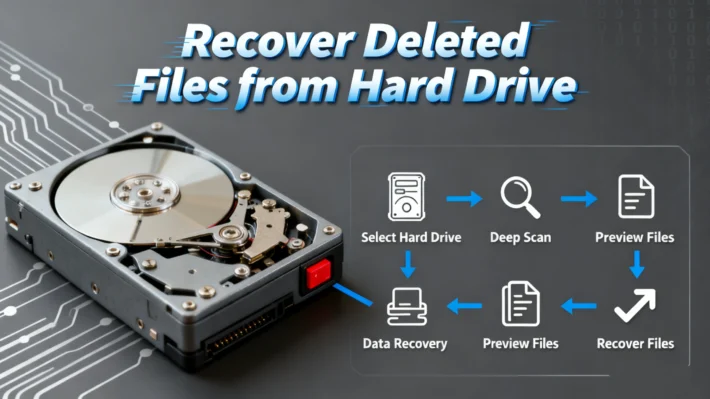
Accidentally deleting important files from your hard drive can be a nightmare. Whether it’s a sudden power outage, human error, or even a system crash, data loss is a situation most people have faced at some point. Fortunately, To recover deleted files from hard drive is possible, and it doesn’t have to be as complicated […]

why A disk read error occurred happens
Disk Issue Fix

A Disk Read Error Occurred: Causes, Fixes & Data Recovery Tips

19.12.2025 Smith, Erin No comments yet

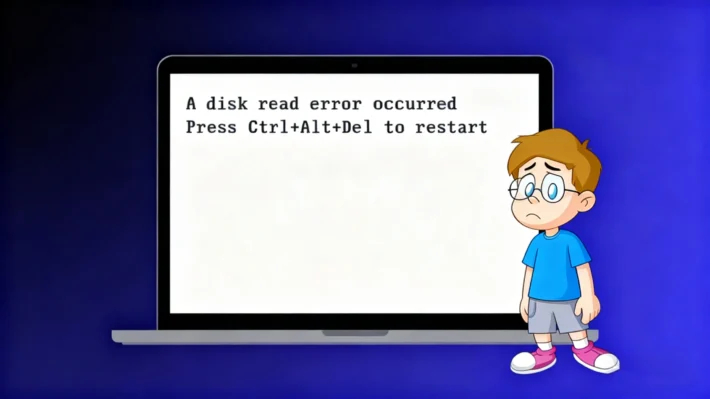
Encountering the error message “A disk read error occurred” when your computer boots can be alarming. This message usually appears on a black screen and prevents Windows from starting normally—leaving many users confused about the next step. Simply pressing Ctrl+Alt+Del typically just restarts the machine but does not resolve the underlying problem. In this article, […]

amagicsoft logo icon

Our vision is to become a globally renowned software brand and service provider, delivering top-tier products and services to our users.

Products
  • Magic Data Recovery
  • Magic Recovery Key
Policy
  • Terms
  • Privacy Policy
  • Refund Policy
  • License Agreement
Company
  • About Amagicsoft
  • Contact US
  • Store
Follow Us

Copyright © 2025 Amagicsoft. All Rights Reserved.

  • Terms
  • Privacy Policy