Skip to content
amagicsoft logo icon
  • Home
  • Products
    • Magic Data Recovery
    • Magic Recovery Key
  • Store
  • Blog
  • More
    • About Amagicsoft
    • Contact US
    • Privacy Policy
    • Terms
    • License Agreement
    • Refund Policy
  • English
    • 日本語
    • 한국어
    • Deutsch
    • Français
    • 繁體中文
USB Drive Recovery

Best USB Flash Drive Data Recovery Software – Free & Paid Tools

18.09.2025 Smith, Erin Comments Off on Best USB Flash Drive Data Recovery Software – Free & Paid Tools
Best USB Flash Drive Data Recovery Software - Free & Paid Tools
USB flash drives are indispensable tools for transferring and storing our important documents, precious photos, and critical work files. Yet, their portability makes them prone to data loss. Whether it’s accidental deletion, a sudden format, or a corrupted drive showing up as RAW, losing data can be a stressful experience. This comprehensive guide will walk you through the causes of data loss, explore free recovery methods, review the best USB flash drive recovery software, and explain why Magic Data Recovery is our top-recommended solution for getting your files back quickly and reliably.
Download Magic Data Recovery

Supports Windows 7/8/10/11 and Windows Server

People also like to read: Best SD Card Recovery Software & Step-by-Step Guide (2025)

Table of Contents

Common Causes of USB Data Loss

Understanding how data is lost is the first step to preventing it and successfully recovering it. The most frequent culprits include:

Accidental Deletion or Formatting: It’s easy to mistakenly delete files or select the wrong drive when formatting.

File System Corruption: Your drive might become inaccessible, showing errors like “RAW” or “Please insert a disk,” often due to improper ejection or system crashes.

Virus or Malware Attacks: Malicious software can corrupt, hide, or delete files stored on your USB drive.

Physical Damage or Improper Ejection: Physical trauma, water damage, or unplugging the drive without using “Safely Remove Hardware” can lead to logical errors and data loss.

Can You Recover Files from a USB Flash Drive?

In most cases, yes, you can recover files from a USB flash drive. When a file is deleted or a drive is formatted, the data isn’t immediately erased from the storage medium; instead, the space it occupied is marked as available for new data. This is known as logical data loss, which is highly recoverable with the right USB flash drive data recovery tool. The success rate depends heavily on one crucial action: stop using the drive immediately to prevent new data from overwriting the old, recoverable files.

Free Methods to Recover USB Flash Drive Data (Without Software)

Before trying software, you can attempt these built-in methods:

Windows Previous Versions / File History: If enabled, right-click the drive or folder, select “Restore previous versions,” and see if a backup exists.

Windows File Recovery: A free Microsoft command-line tool for advanced users. It requires specific commands based on your file system and data loss scenario.

CHKDSK and CMD Commands: Running chkdsk X: /f (replace X with your drive letter) can sometimes repair logical errors and make files accessible again.

Best Free USB Flash Drive Data Recovery Software

When built-in tools fail, dedicated free USB flash drive recovery software can be effective. We evaluated tools based on recovery success rate, ease of use, supported file types, and free version limitations.

Software

Best For

Key Limitations

Recuva

Beginners on Windows

Limited deep scan effectiveness; Windows only.

PhotoRec

Advanced users; many file types

No file preview; command-line interface; no filename recovery.

TestDisk

Repairing partitions & boot sectors

Extremely complex; not for casual file recovery.

Verdict: Free tools are good for simple, recent deletions but often lack the power, user-friendly interface, and support needed for complex cases like formatted or RAW drives.

Recommended Paid & Advanced Solutions

Free software often comes with restrictions like data recovery limits, lack of preview, or no support for advanced file systems. For guaranteed results, especially in severe data loss situations, a powerful paid solution is necessary. While there are several popular paid tools, our top recommendation for a comprehensive and user-friendly experience is Magic Data Recovery.
magic data recovery

Why Choose Magic Data Recovery Software (Our Top Recommendation)

For a successful USB flash drive recovery, you need a tool that is both powerful and easy to use. Magic Data Recoverystands out as the best all-in-one solution for several reasons:

High Recovery Success Rate: Effectively recovers photos, videos, documents, archives, and emails from any data loss scenario.

Universal File System Support: Fully supports FAT, exFAT, NTFS, HFS+, and EXT, making it compatible with USB drives.

Preview Before Recovery: The intuitive interface allows you to preview found files, ensuring you only recover what you need.

Free Trial: The free version lets you scan your drive and preview recoverable files, and you can also recover less than 500MB files for testing, so you can verify the results before purchasing the full version to complete the USB flash drive data recovery.

Step-by-Step Guide: Recovering USB Data with Magic Data Recovery

Follow these simple steps to get your files back:

1. Download & Install: Download and install Magic Data Recovery from the official website. Launch the application.

Download Magic Data Recovery

Supports Windows 7/8/10/11 and Windows Server

2. Select and Scan: Insert the corrupted or formatted USB flash drive into your computer. From the main interface, select your USB drive from the list of devices. Click ” Search for Lost Data” to begin.
Connect the initialized SD card to PC before running the SD card recovery program
3. Preview Files: Once the scan is complete, browse through the categorized results (by file type or path). Use the preview pane to check the integrity of your files.
Preview files on the SD card recovery program
4. Recover: Select the files you want to restore and click “Recover.” Crucially, choose a safe save location on your computer’s internal drive or another healthy external drive—never save back to the same USB drive you are recovering from.
Save recovered files using the SD card recovery program
♦ You can also watch the video on Youtube to know the steps

Conclusion

While free methods and software can help in minor situations, their effectiveness is limited. For a reliable, high-success-rate USB flash drive recovery, a professional tool is often the only solution. Magic Data Recovery provides the perfect balance of powerful scanning technology, broad format support, and an exceptionally user-friendly interface, making it our top choice for USB flash drive recovery software.

Don’t risk permanent data loss. Download Magic Data Recovery today and restore your lost USB files with ease.

Download Magic Data Recovery

Supports Windows 7/8/10/11 and Windows Server

FAQ

Q1: Is it possible to recover data from a physically damaged USB flash drive?

Software-based USB flash drive data recovery can only address logical damage. If the drive has physical damage (e.g., broken connector, water damage, faulty memory chip), you must stop using it immediately and consult a professional data recovery service for a hardware-level repair and recovery.

Q2: Does formatting a USB drive permanently erase data?

No, a quick format does not immediately erase the data. It only deletes the address table, making the files invisible to the operating system but still recoverable with software like Magic Data Recovery until they are overwritten by new data. A full format (which is rare on USB drives) takes much longer and may overwrite the data, making recovery difficult.

Q3: Can I recover files from a USB drive that shows as 'RAW' or has 0 bytes?

Yes, a RAW file system indicates corruption that makes the drive inaccessible. Magic Data Recovery is specifically designed to handle such cases.
  • Magic Data Recovery
Smith, Erin

Erin Smith is recognized as one of the most professional writers at Amagicsoft. She has continually honed her writing skills over the past 10 years and helped millions of readers solve their tech problems.
文章导航

Previous
Next

Search

Categories

  • Bitlocker Recovery
  • Deleted File Recovery
  • Disk Issue Fix
  • Format File Recovery
  • Hard Drive Recovery
  • License Key Recovery
  • Lost File Recovery
  • Memory Card Recovery
  • News
  • Password Recovery
  • Photo Recovery
  • SSD Recovery
  • USB Drive Recovery
  • User Guide
  • Video Recovery
  • Wiki

Recent posts

  • recover deleted files from pen drive
    How to Recover Deleted Files from Pen Drive in 7 Effective Ways
  • recover deleted files from hard drive
    How to Recover Deleted Files from Hard Drive
  • why A disk read error occurred happens
    A Disk Read Error Occurred: Causes, Fixes & Data Recovery Tips

Tags

Disk Repair Error Troubleshooting How to Magic Data Recovery Magic Recovery Key WiKi

Related posts

recover deleted files from pen drive
Deleted File Recovery

How to Recover Deleted Files from Pen Drive in 7 Effective Ways

19.12.2025 Smith, Erin No comments yet

Losing important files from a USB flash drive can be frustrating. Whether you accidentally pressed Delete, formatted the drive by mistake, or encountered a file system error, data loss on pen drives happens more often than most users expect. In many cases, recover deleted files from pen drive is still possible. When files are deleted, […]

recover deleted files from hard drive
Deleted File Recovery

How to Recover Deleted Files from Hard Drive

19.12.2025 Smith, Erin No comments yet

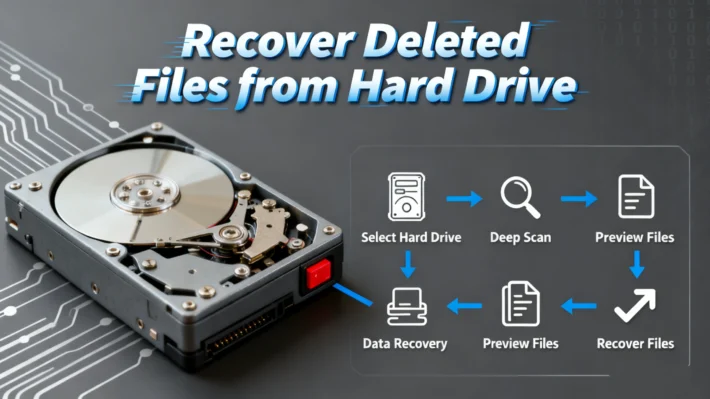
Accidentally deleting important files from your hard drive can be a nightmare. Whether it’s a sudden power outage, human error, or even a system crash, data loss is a situation most people have faced at some point. Fortunately, To recover deleted files from hard drive is possible, and it doesn’t have to be as complicated […]

why A disk read error occurred happens
Disk Issue Fix

A Disk Read Error Occurred: Causes, Fixes & Data Recovery Tips

19.12.2025 Smith, Erin No comments yet

Encountering the error message “A disk read error occurred” when your computer boots can be alarming. This message usually appears on a black screen and prevents Windows from starting normally—leaving many users confused about the next step. Simply pressing Ctrl+Alt+Del typically just restarts the machine but does not resolve the underlying problem. In this article, […]

amagicsoft logo icon

Our vision is to become a globally renowned software brand and service provider, delivering top-tier products and services to our users.

Products
  • Magic Data Recovery
  • Magic Recovery Key
Policy
  • Terms
  • Privacy Policy
  • Refund Policy
  • License Agreement
Company
  • About Amagicsoft
  • Contact US
  • Store
Follow Us

Copyright © 2025 Amagicsoft. All Rights Reserved.

  • Terms
  • Privacy Policy