Deleted Data Recovery: Ultimate Guide to Recovering Lost Files

Table of Contents
Supports Windows 7/8/10/11 and Windows Server
Deleted Data Recovery on SSDs: Why It Rarely Works
Solid-state drives (SSDs) are widely used for their speed and reliability, but recovering deleted data from them is notoriously difficult. Here’s why:
- TRIM Command: SSDs use a TRIM function that optimizes performance by marking deleted data blocks as “free” for immediate reuse. Once TRIM is enabled (standard in most modern SSDs), the deleted data is quickly overwritten, making recovery nearly impossible. Unlike HDDs, SSDs prioritize speed over data retention, which complicates deleted data recovery efforts.
- Wear Leveling: SSDs distribute data across memory cells to extend their lifespan. This process scatters data fragments, making it harder for recovery tools to piece together deleted files accurately.
- Lack of Physical Traces: Unlike HDDs, which store data magnetically and may leave recoverable traces, SSDs use flash memory, which doesn’t retain data remnants once overwritten. This makes professional recovery tools or services essential but often costly and complex.
Due to these factors, data recovery after deleting or formatting on SSDs typically requires advanced forensic tools and expertise, and even then, success is not guaranteed. If you’re dealing with an SSD, acting quickly before new data overwrites the deleted files is critical. But you can find a way to recover data from a corrupted SSD in this article:
Effective Deleted Data Recovery Solutions
Solution 1: Hex Editor tool for deleted data Recovery
WinHex is a powerful hexadecimal editor and data recovery tool favored by IT professionals and forensic experts. It allows users to access and recover data from HDDs at a sector-level, making it suitable for complex deleted data recovery scenarios.
- How It Works: WinHex scans the HDD’s sectors to locate remnants of deleted files, even if the file system is damaged. Users can manually reconstruct files by analyzing hexadecimal data, which requires technical expertise. The recovery method depends on the file system. For example, for exFAT file system, the file name properties are modified with a deletion mark.

- Pros:
- Cons:
- Steep learning curve; not beginner-friendly.
- Time-consuming manual process for file reconstruction.
- Expensive licensing for full features (often over $100).
- Use Case: Ideal for professionals handling complex recovery tasks, such as recovering data from a physically damaged HDD or reconstructing fragmented files.
While WinHex is powerful, its complexity and cost make it less accessible for everyday users seeking a straightforward deleted data recovery solution.
Solution 2: Magic Data Recovery – Simple, Affordable, and Effective
For most users, Magic Data Recovery offers a user-friendly, cost-effective alternative for deleted data recovery on HDDs. This software is designed to simplify the recovery process without sacrificing effectiveness.
- How It Works: Magic Data Recovery scans your HDD to locate deleted files, offering a preview of recoverable data before restoration. Its intuitive interface guides users through the process, requiring no technical expertise. It supports multiple file types (documents, photos, videos, etc.) and file systems (NTFS, FAT, exFAT).
- Pros:
- Ease of Use: A wizard-driven interface makes recovery accessible to beginners.
- Affordable: Priced competitively (under $70), it’s significantly cheaper than WinHex or professional services.
- Fast Scanning: Quickly identifies recoverable files, saving time.
- Safe Recovery: Saves recovered files to a separate location to avoid overwriting data.
- Cons:
- Less suited for severely damaged drives compared to WinHex.
- Limited advanced features for forensic-level recovery.
- Use Case: Perfect for individuals or small businesses recovering accidentally deleted files from HDDs, USB drives, or memory cards.
Comparison: While WinHex offers granular control for professionals, its complexity and cost can be overkill for most users. Magic Data Recovery, created by Amagicsoft, stands out for its simplicity, affordability, and effectiveness, making it the go-to choice for non-experts. For example, recovering a deleted Word document with Magic Data Recovery takes just a few clicks, while WinHex requires navigating hexadecimal data—a process that can take hours for untrained users.
How to Use Magic Data Recovery to Recover Deleted Files:
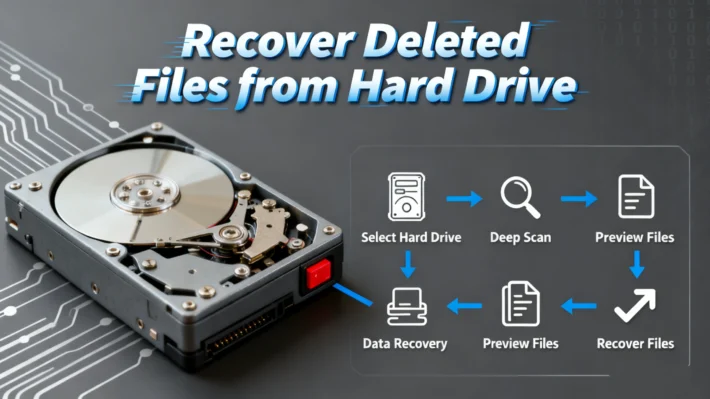
Using Magic Data Recovery for deleted data recovery is straightforward, even for beginners. Follow these steps to recover your lost files:
1.Download and Install: Don’t install it on the drive where the lost files located.
Supports Windows 7/8/10/11 and Windows Server



5.Recover Files: Select the desired files and choose a different drive to save them. This prevents overwriting the original data. Click “Recover” to complete the process.

Conclusion
FAQ
1. Are permanently deleted files really gone?
2. Can I recover deleted data?
3. How do I recover permanently deleted data?

Vasilii is a data recovery specialist with around 10 years of hands-on experience in the field. Throughout his career, he has successfully solved thousands of complex cases involving deleted files, formatted drives, lost partitions, and RAW file systems. His expertise covers both manual recovery methods using professional tools like hex editors and advanced automated solutions with recovery software. Vasilii's mission is to make reliable data recovery knowledge accessible to both IT professionals and everyday users, helping them safeguard their valuable digital assets.